Console guide
A tour of every surface in the Waveband console: from first sign-in to reports, Autopilot, and developer settings. Screenshots show the sandbox workspace every new account gets, so what you see here is exactly what you get on day one.
Sign in and set up
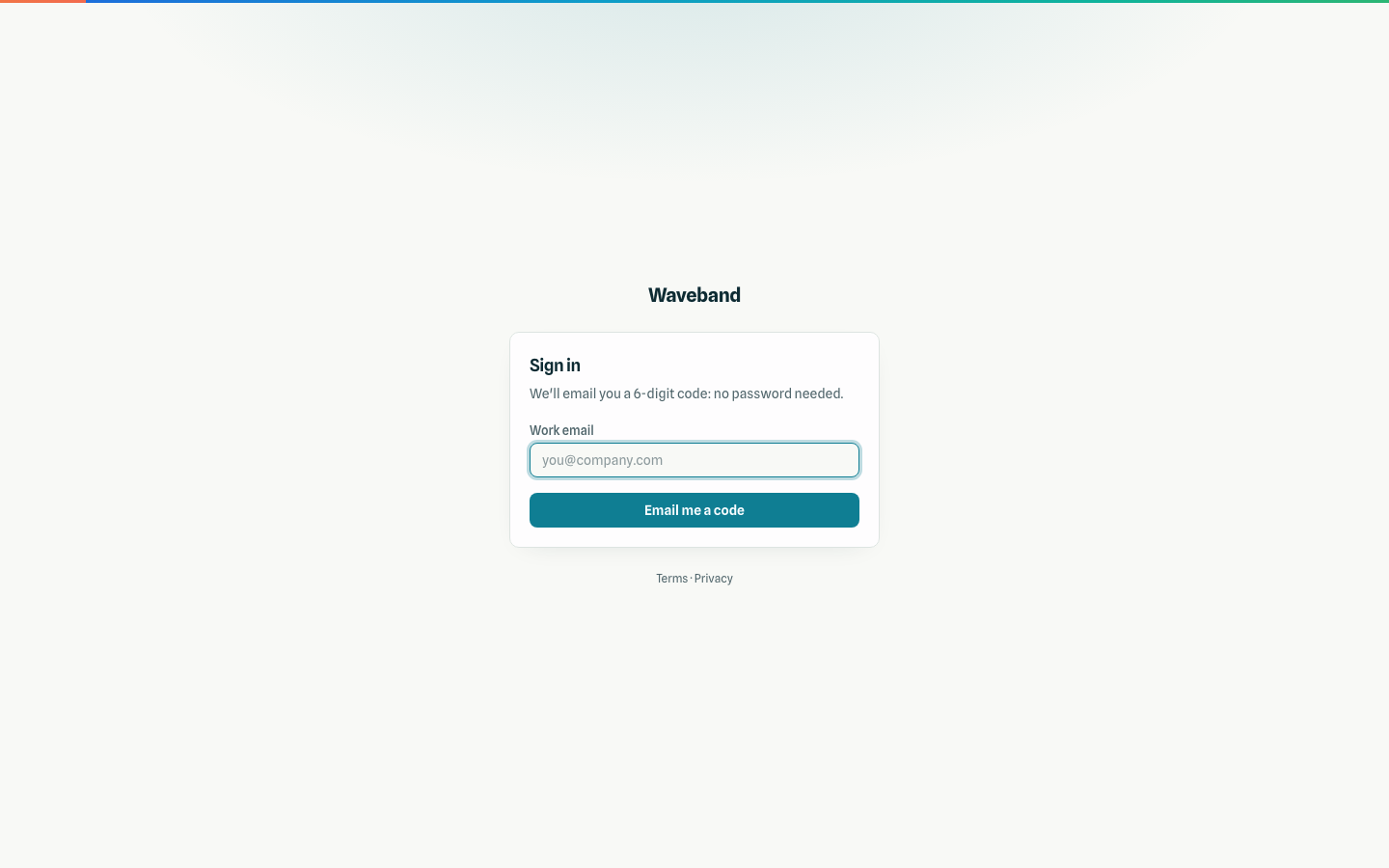
Signing up is free. Continue with Google (Gmail or Google Workspace accounts), or enter your work email and the 6-digit code we send you: no passwords to leak or reset. The same step creates your account the first time.
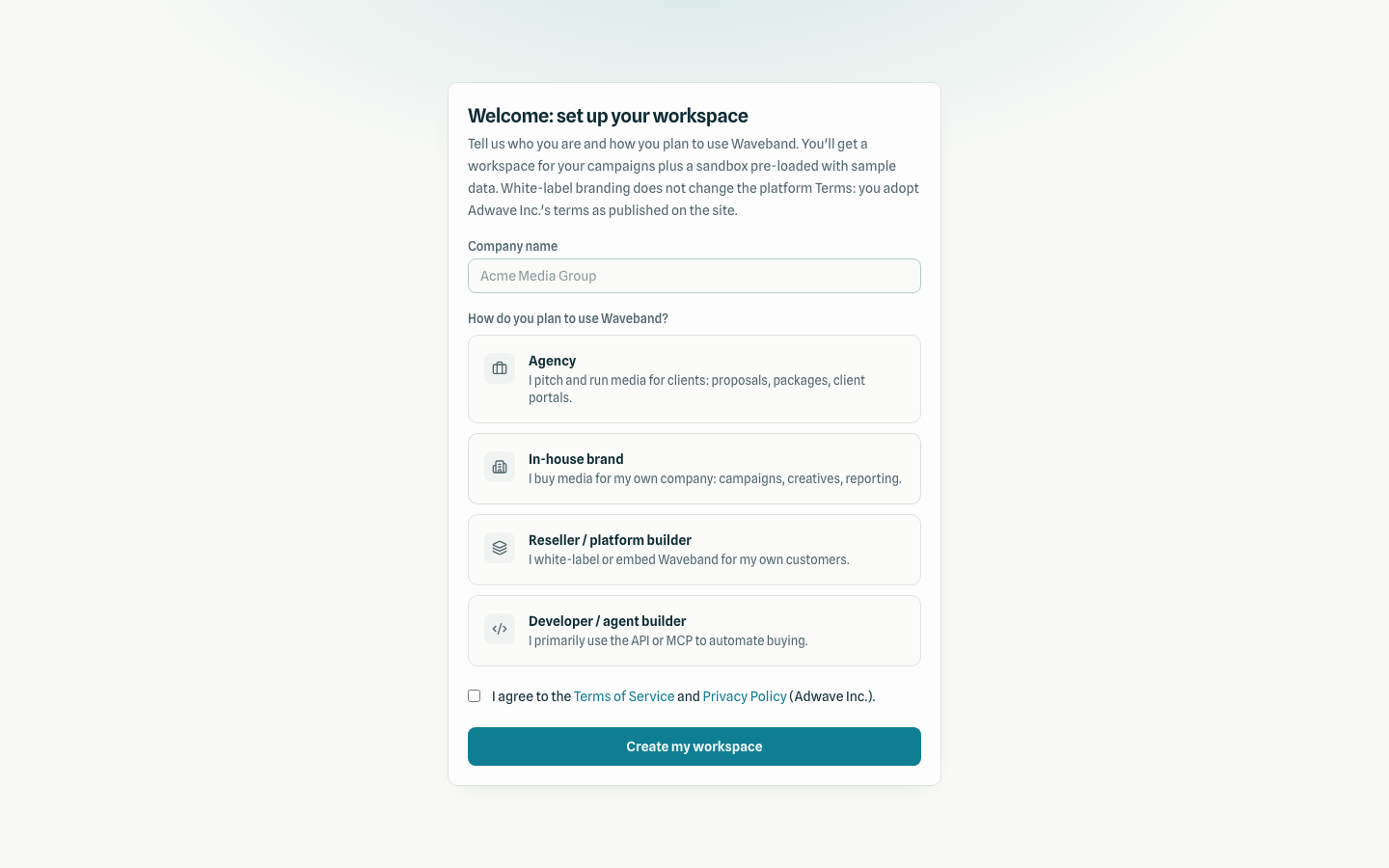
On first sign-in you name your company, enter the advertiser's website and category, and choose how you plan to use Waveband (agency, in-house brand, reseller, or developer). That creates your tenant, a main workspace for real campaigns, and a sandbox workspace pre-loaded with sample data so you can explore reports and Autopilot before launching anything real. Agencies and resellers also get Plan & Pitch tools; brands and developers see the buying seat without those agency workflows. To change your use case later, contact support. When you're ready to launch, add funds to your wallet (see Billing); the console home walks you through the four steps to a live campaign, and the launch checklist covers what each step needs.
Workspaces
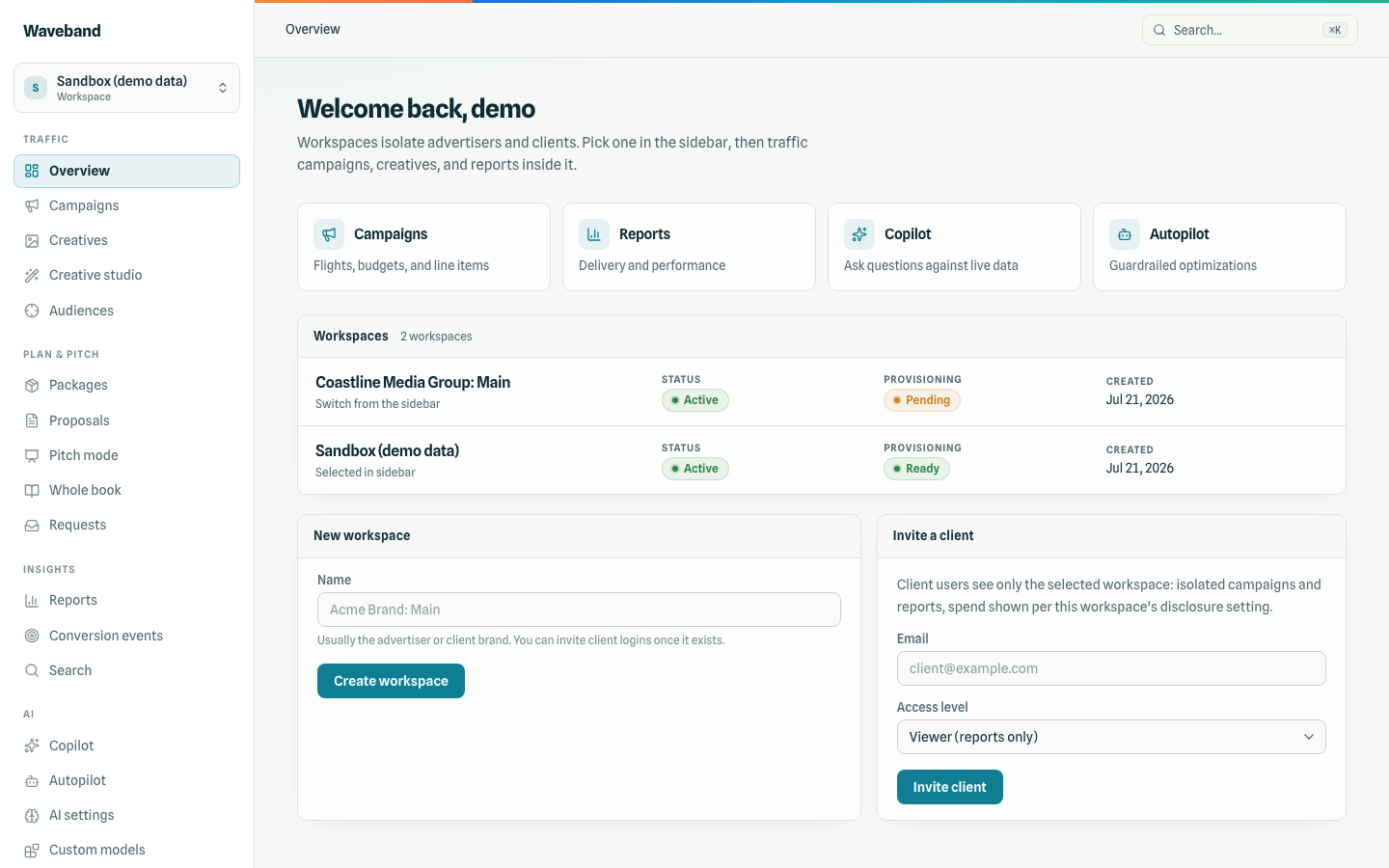
A workspace maps to one advertiser (usually a client brand). The overview lists your workspaces with provisioning status; the sidebar picker switches between them, and every page in the console is scoped to the selected workspace. Client logins are invited here too: see Client portal.
Campaigns
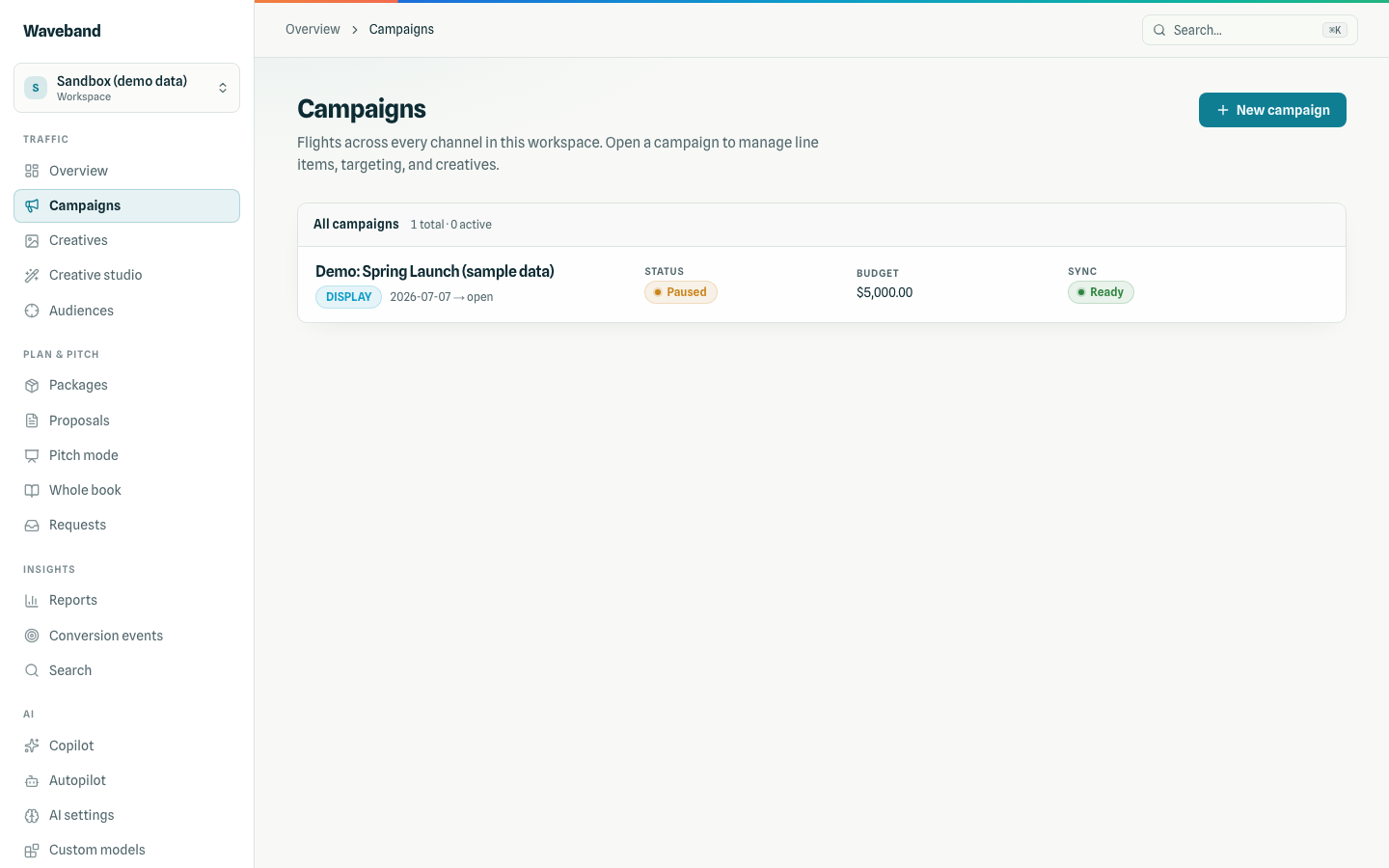
Campaigns hold budget, flight dates, and a goal; line items under them carry bids and targeting. Changes sync to the delivery infrastructure asynchronously: the Sync badge tells you when a change is live.
The campaign detail page shows flight, budget, and line items with bids and sync state; add line items from a slide-over form and edit them later from the same form. Targeting covers countries, states, DMAs, and cities picked from lists, ZIP codes, devices, websites or apps, exchanges (CTV and mobile app default to a recommended list), the Authorized sellers only (ads.txt) setting that is on by default, PMP deals, content genres to include or block on video channels, app allow and block lists, and blocked domains. Every field and rule: Targeting. Creatives attach and can be removed per line item; a running line item keeps at least one.
The form shows estimated available impressions for the targeting and dates as you edit: the supply that matches before your bid, budget, and pacing, with a likely range, for up to 31 days of the flight. It is not a delivery promise and not unique reach. Settings the estimate can't include (such as DMAs or audiences) are listed under it. If estimates are busy, wait a moment and try again.
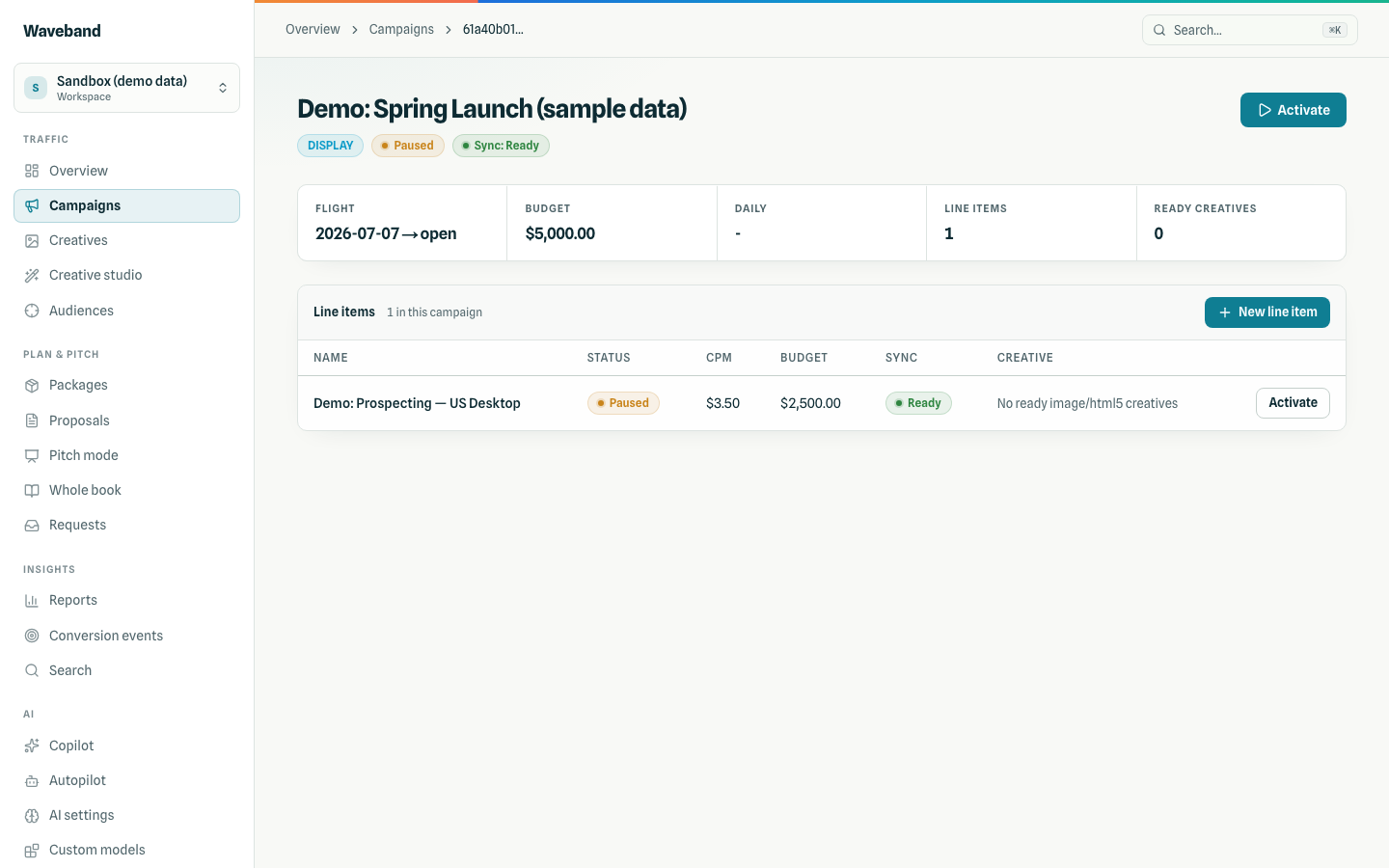
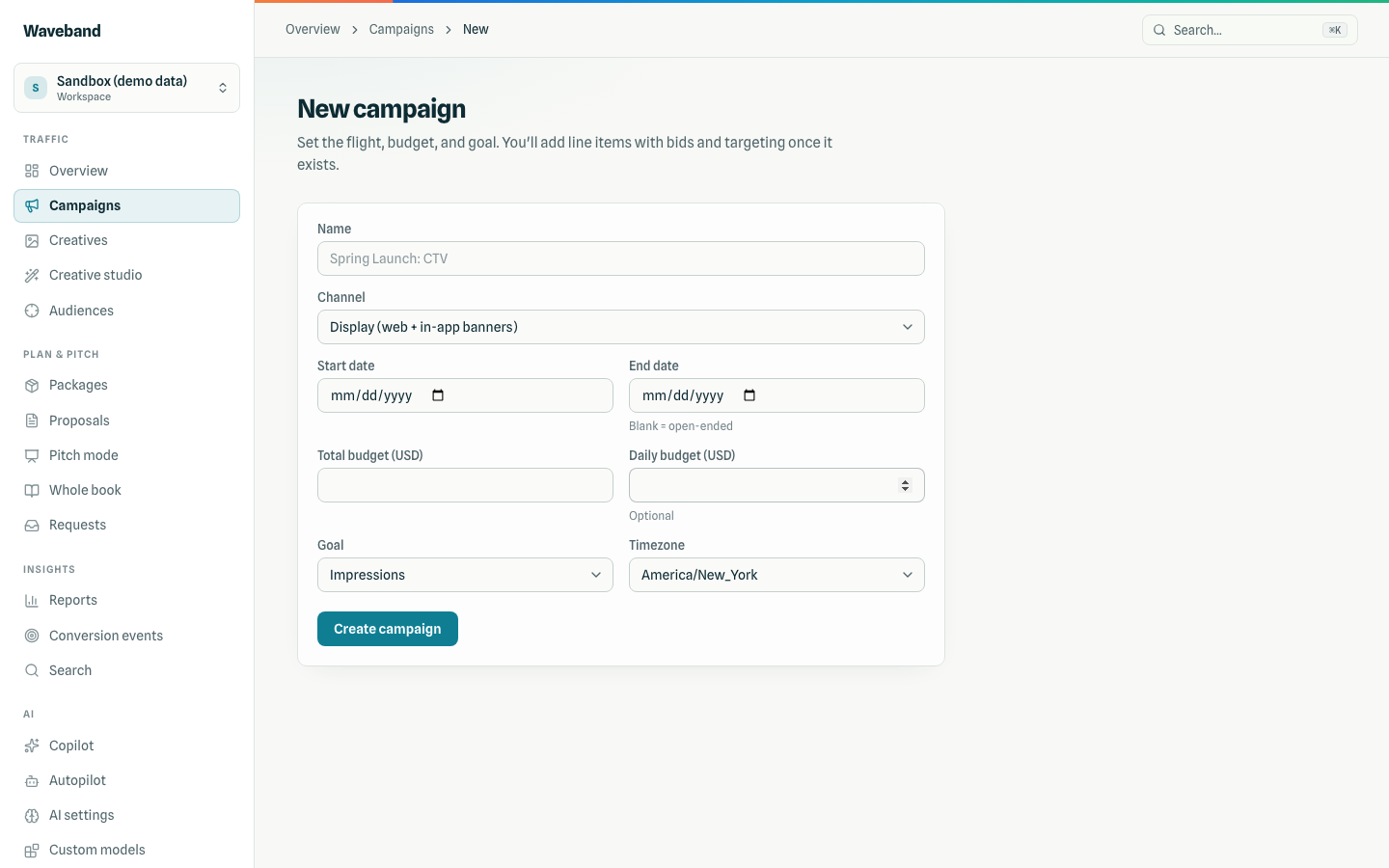
Creating a campaign is one form: channel (CTV, display, online video, native, DOOH, mobile app), budget, dates, and goal. Audio campaigns are coming soon and can't be created yet; sound-on video with Soundframe runs today. Set a daily budget, an end date, or both (a running campaign needs a daily budget).
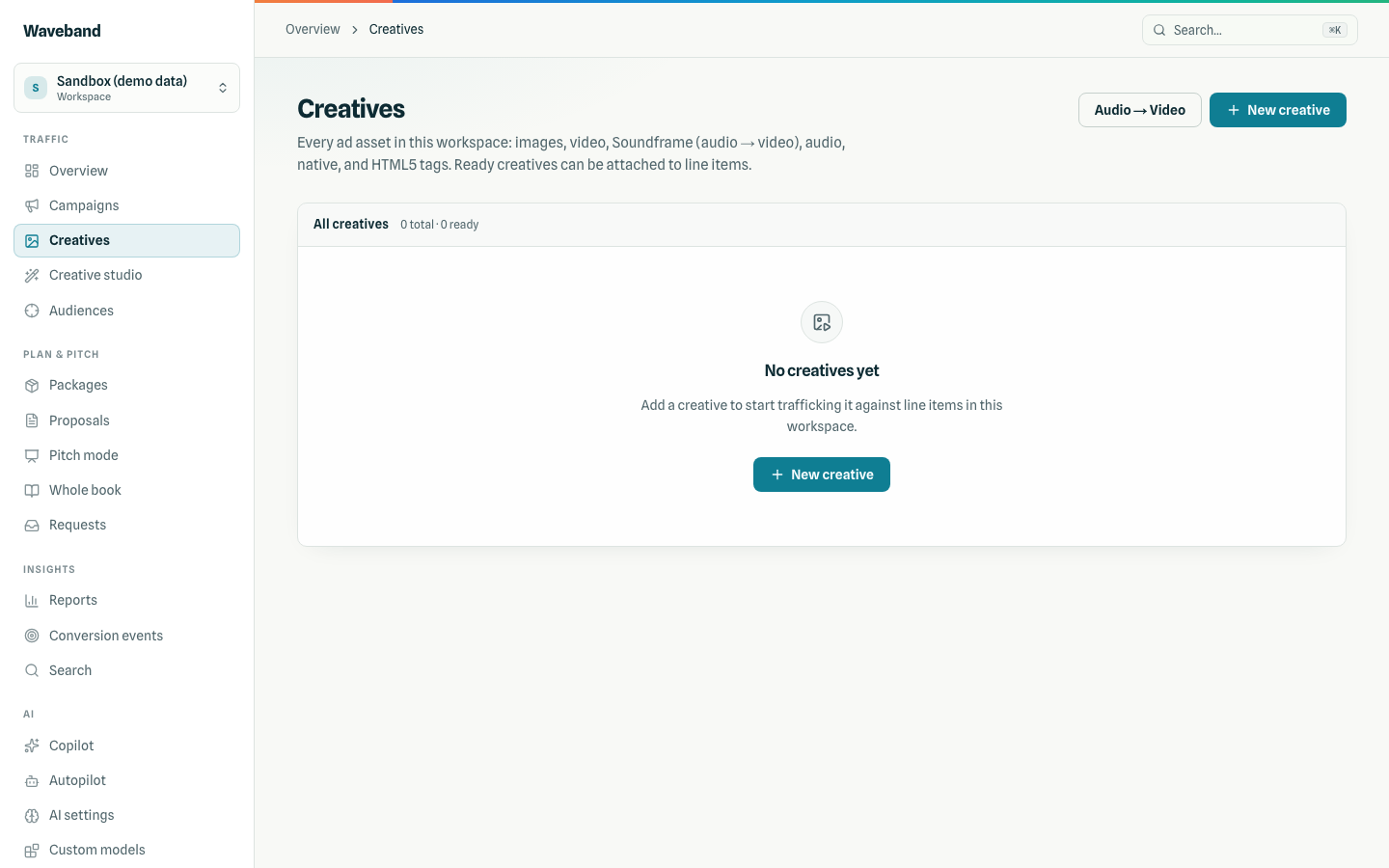
Creatives
Upload display images, HTML5 (with its ad size and a click-through URL), video (transcoded for CTV/OLV), and native. Audio uploads are coming soon. Validation is channel-aware: a creative that can't serve on a line item's channel cannot be attached, and exchange review status is shown per creative. Requirements per format: Making ads.
Creative studio & Waveforms
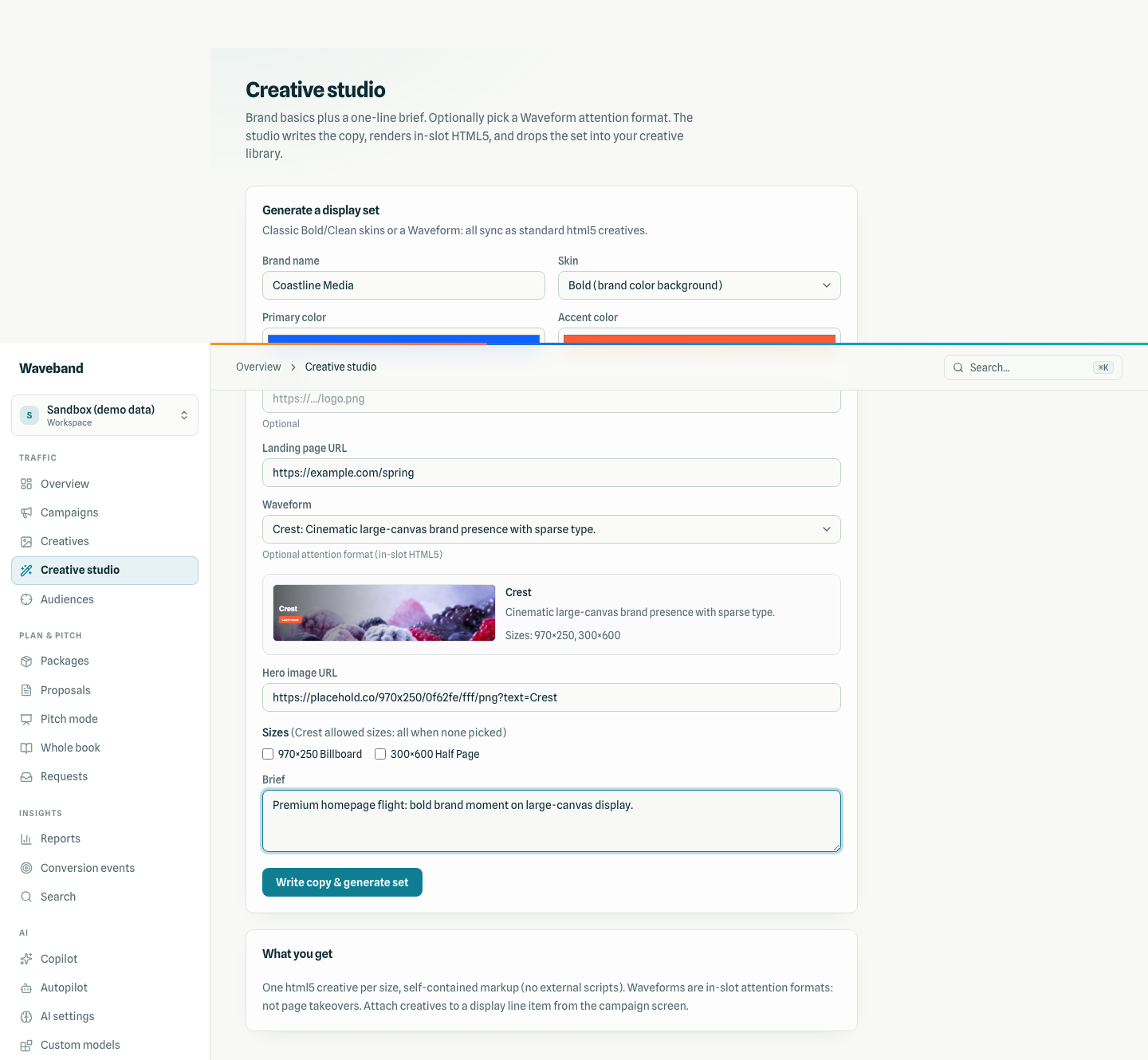
No ads yet? Make ads with AI in Creative Studio: describe the ad, pick display banners (six standard sizes), online video, or a CTV spot, and the finished files land in your creative library as normal creatives, usually within minutes. Up to the quoted maximum is set aside from your wallet first; you're charged the actual cost when the ads are ready, and only for work actually done if generation doesn't finish.
Creative Studio turns a brand kit and brief into a full display set of html5 creatives. Optionally pick a Waveform: one of twenty in-slot HTML5 attention formats (story, reveal, offer, composition) with CSS/native motion and no scripts. The Studio thumbnail is a live iframe from the same renderer that traffics. Full catalog, trafficking notes, and Peak Display packaging: Waveforms docs. For audio-led video, see Soundframe.
Audiences
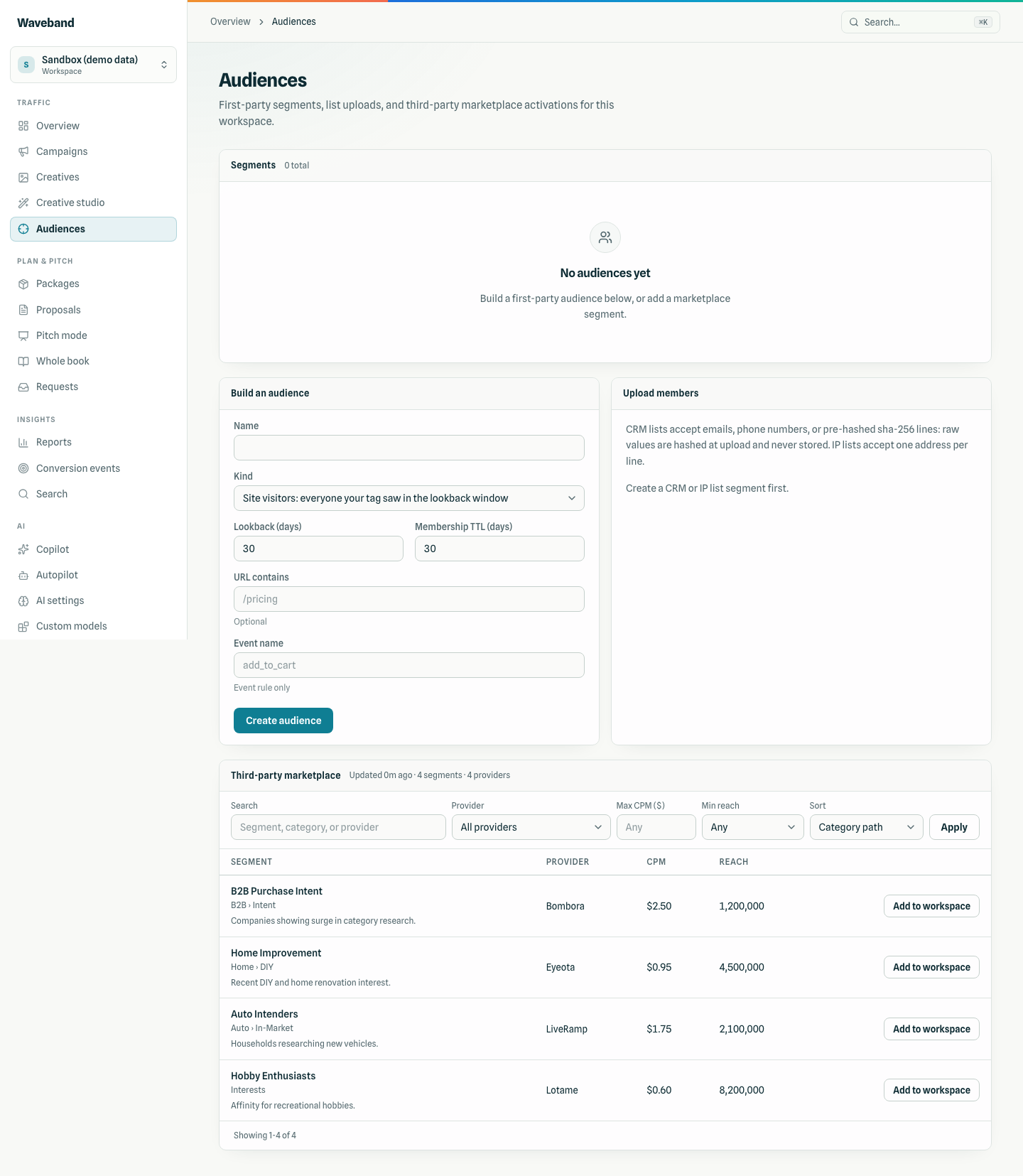
Build first-party segments from your site traffic (pixel rules), upload CRM lists (hashed emails) or IP lists, and browse the third-party marketplace with search, provider, CPM, and reach filters. Segments show size and readiness; under-sized segments cannot be attached to targeting. See Audiences for the full marketplace API.
Conversion events & tracking
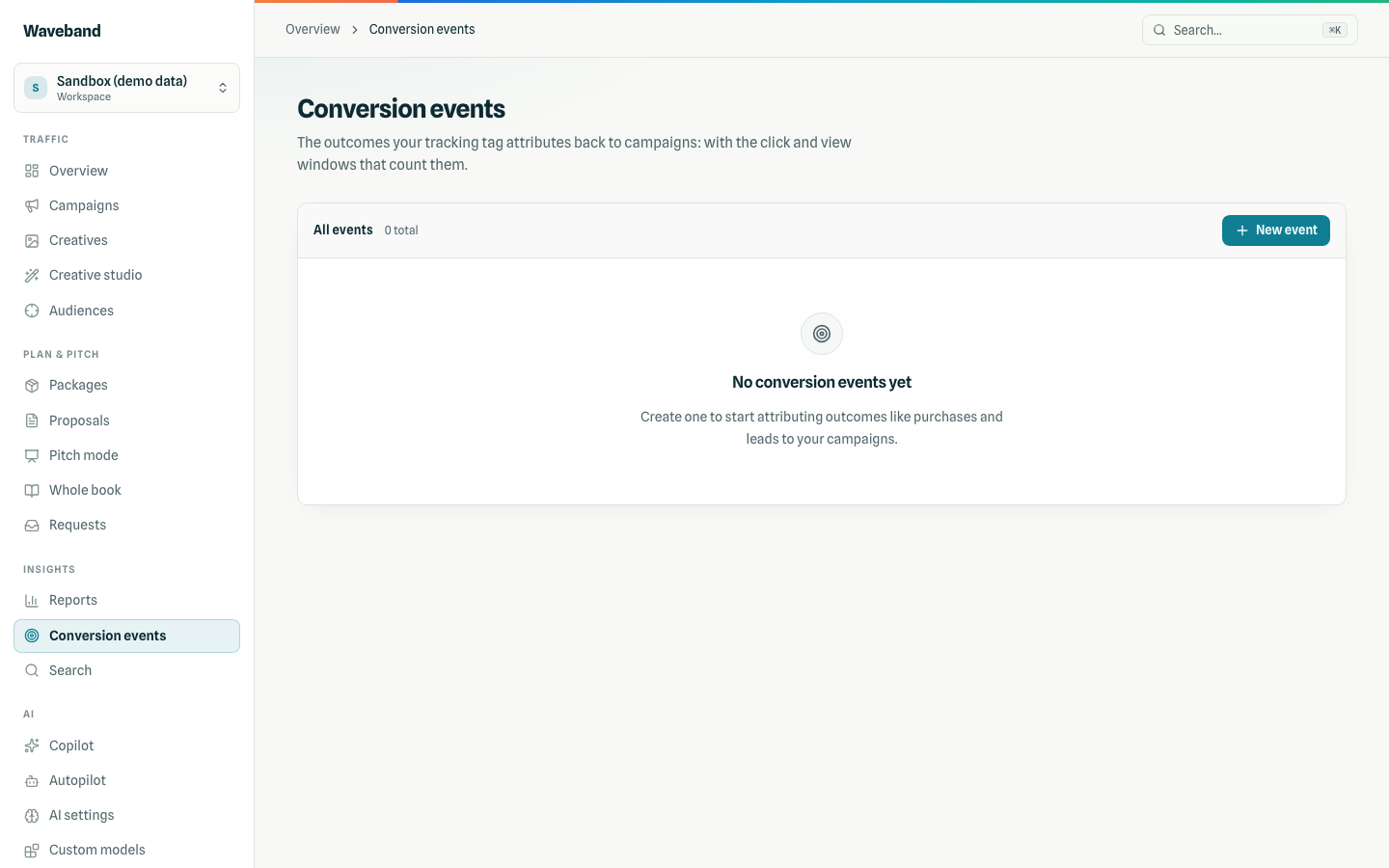
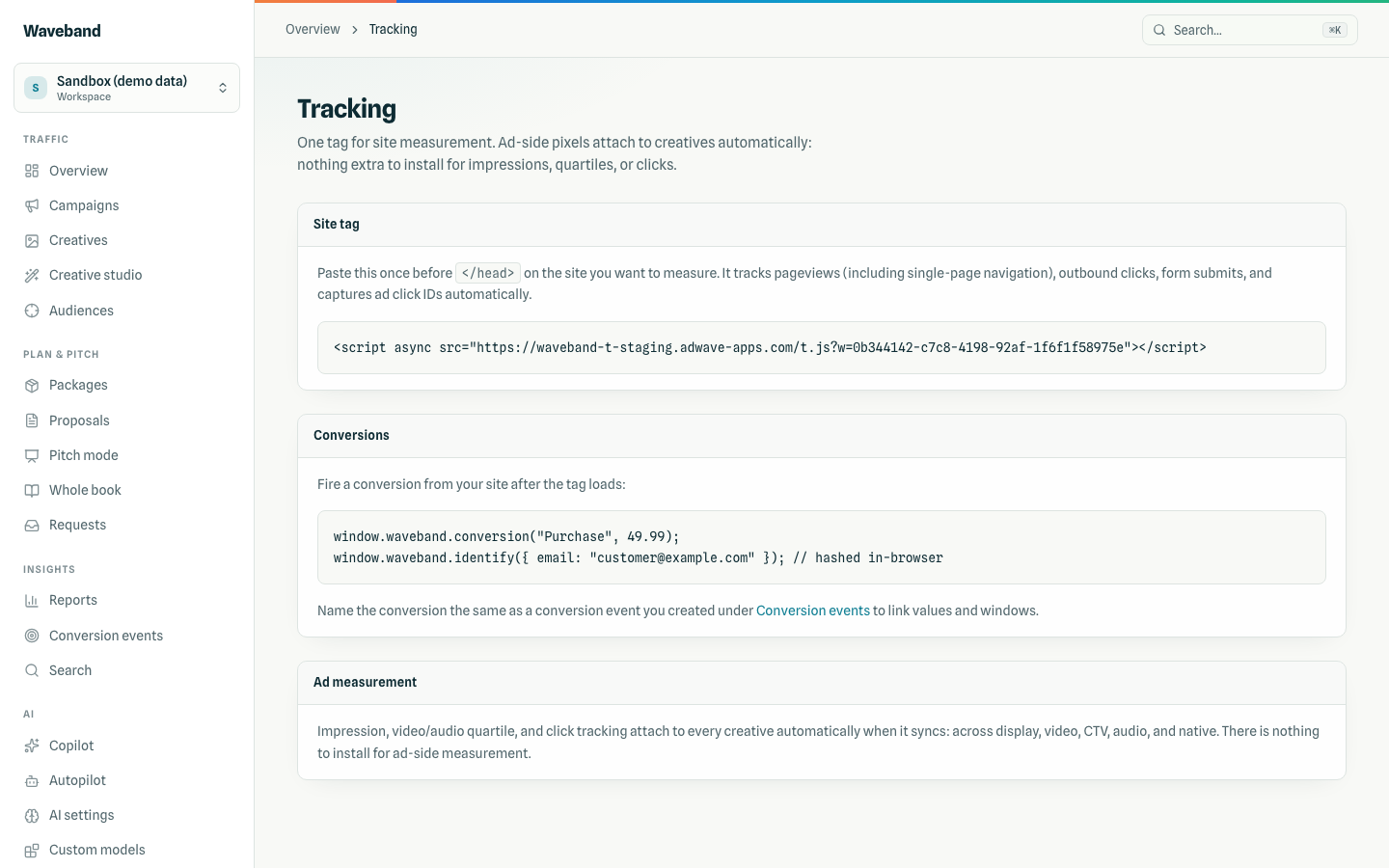
Define conversion events (purchase, signup, lead…) and grab the matching pixel or site-tag snippet from the Tracking page. Delivery, clicks, and conversions land in the same first-party reporting pipeline. See Tracking & pixels for the site tag and attribution lanes.
Reports
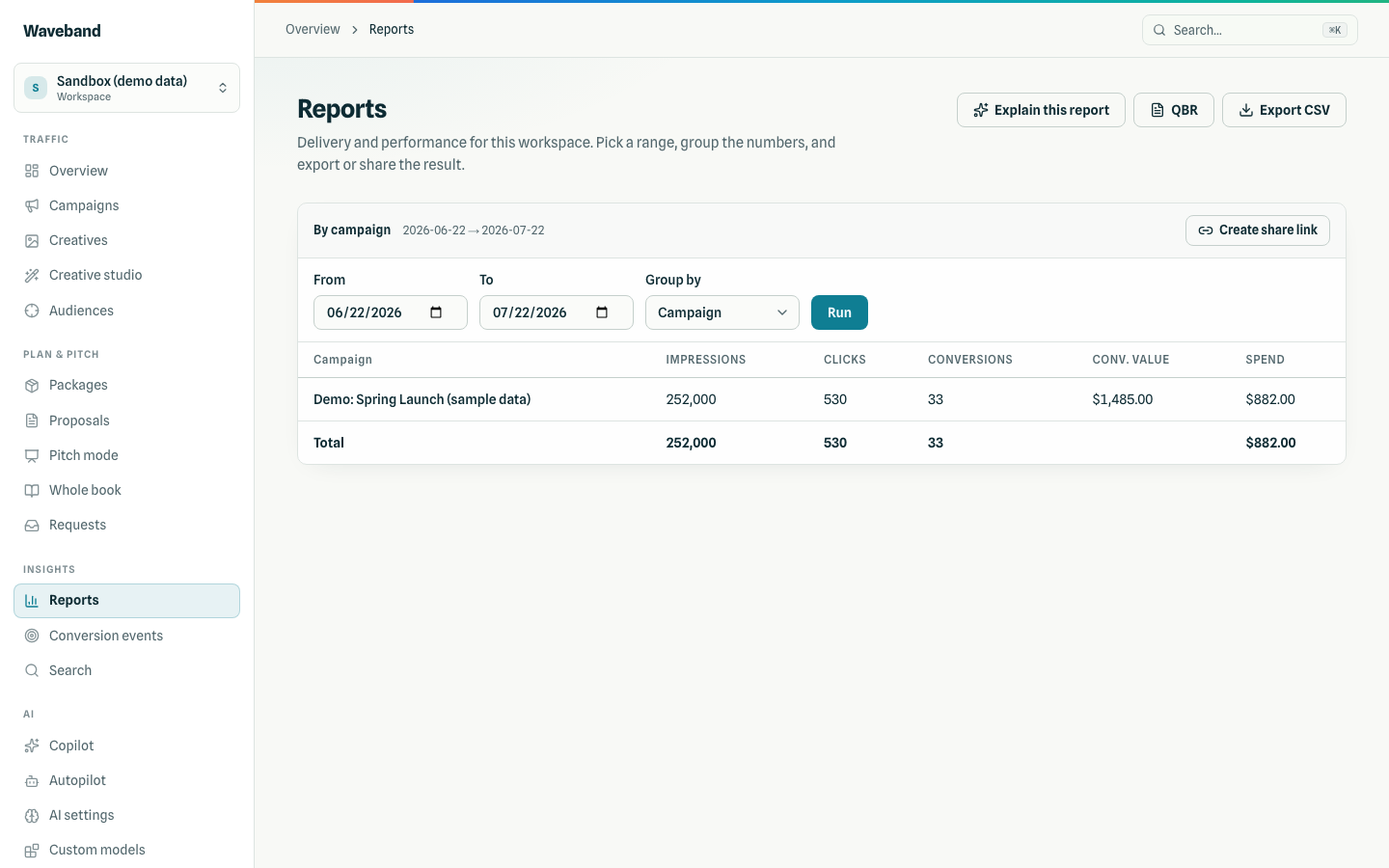
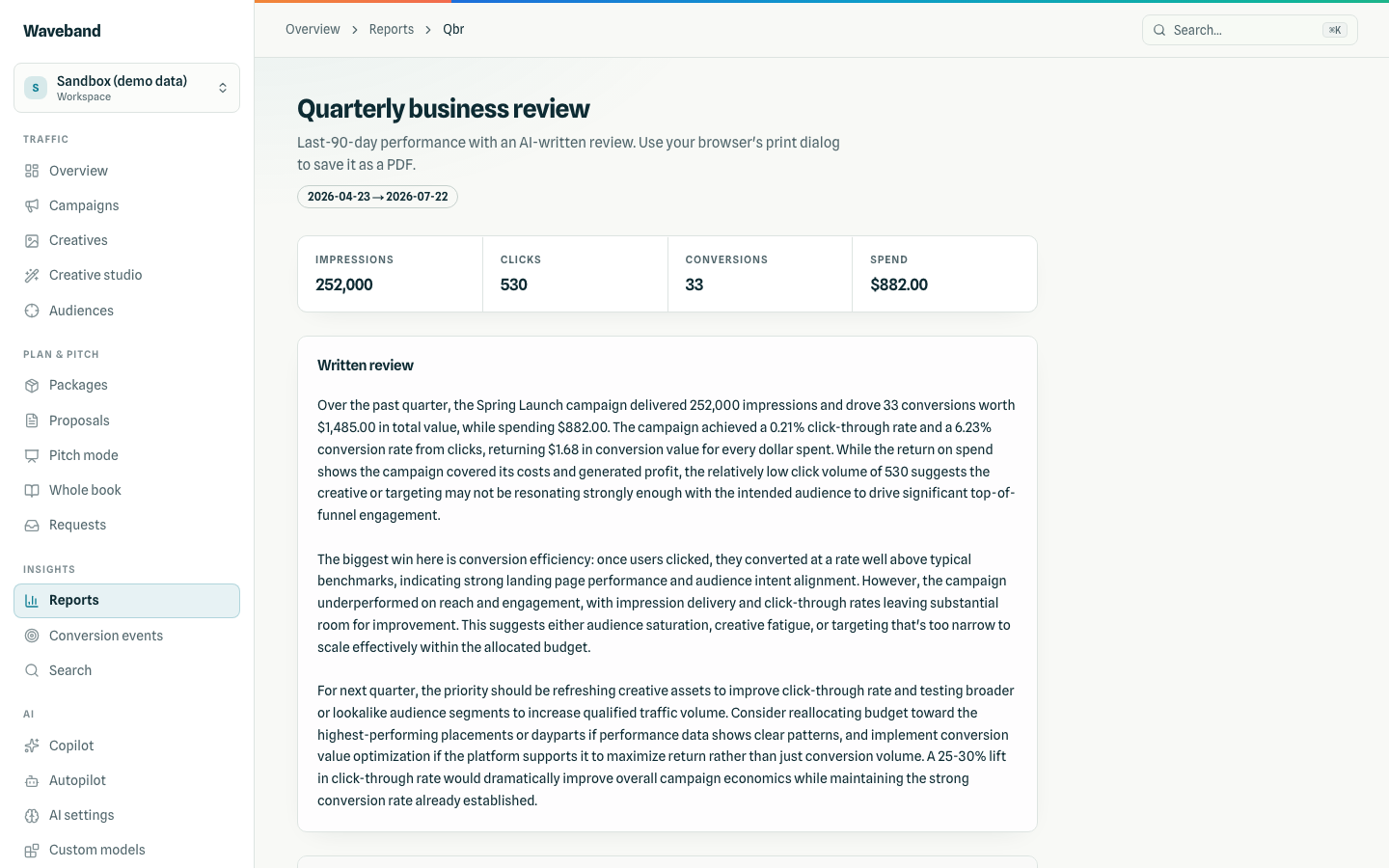
The report builder groups delivery by campaign, line item, creative, day, or channel over any date range: with CSV export, shareable tokened links, an AI "Explain this report" narrative, and a one-click printable QBR. Metric definitions, attribution windows, and data freshness: Reports & metrics.
Copilot & Autopilot
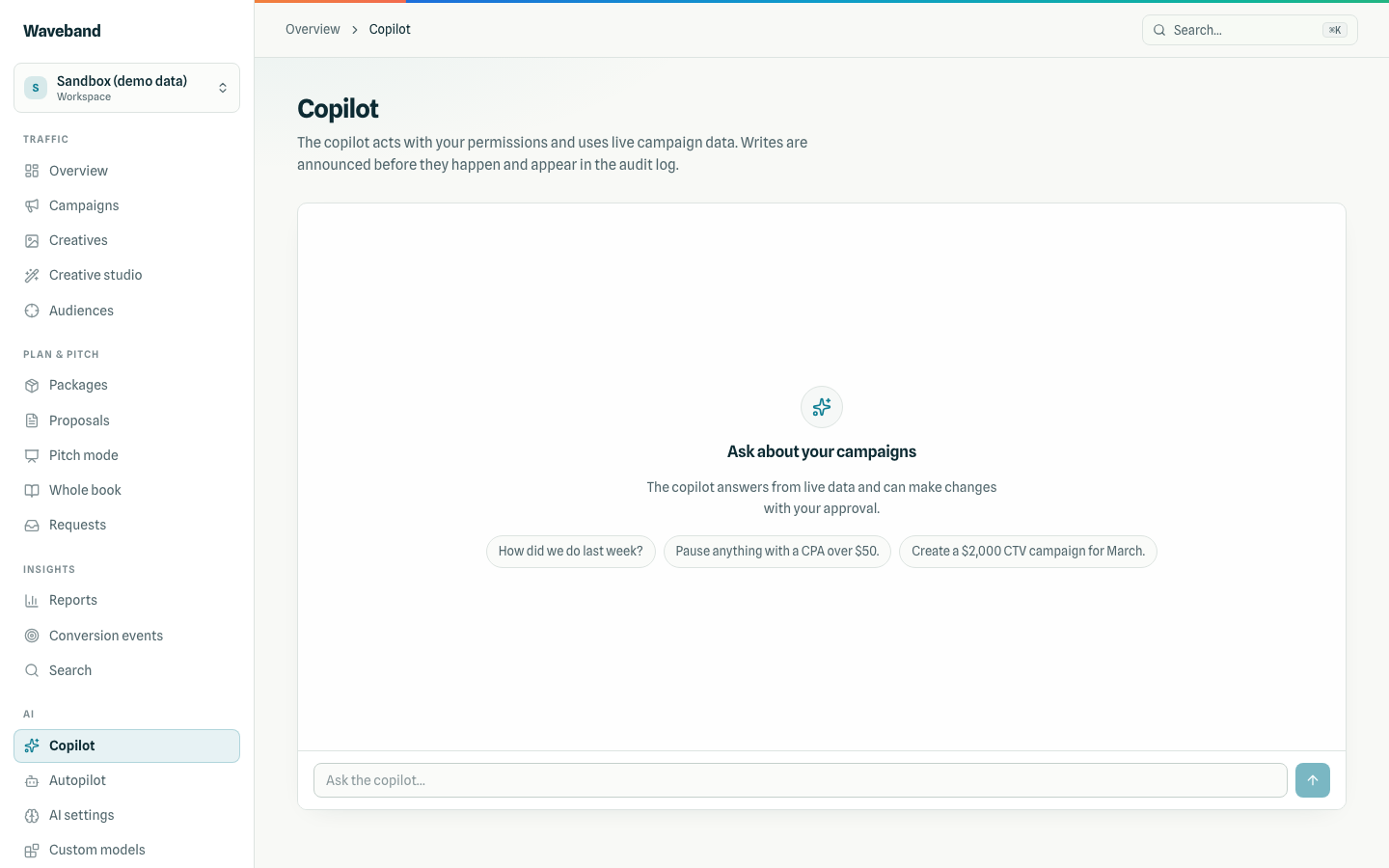
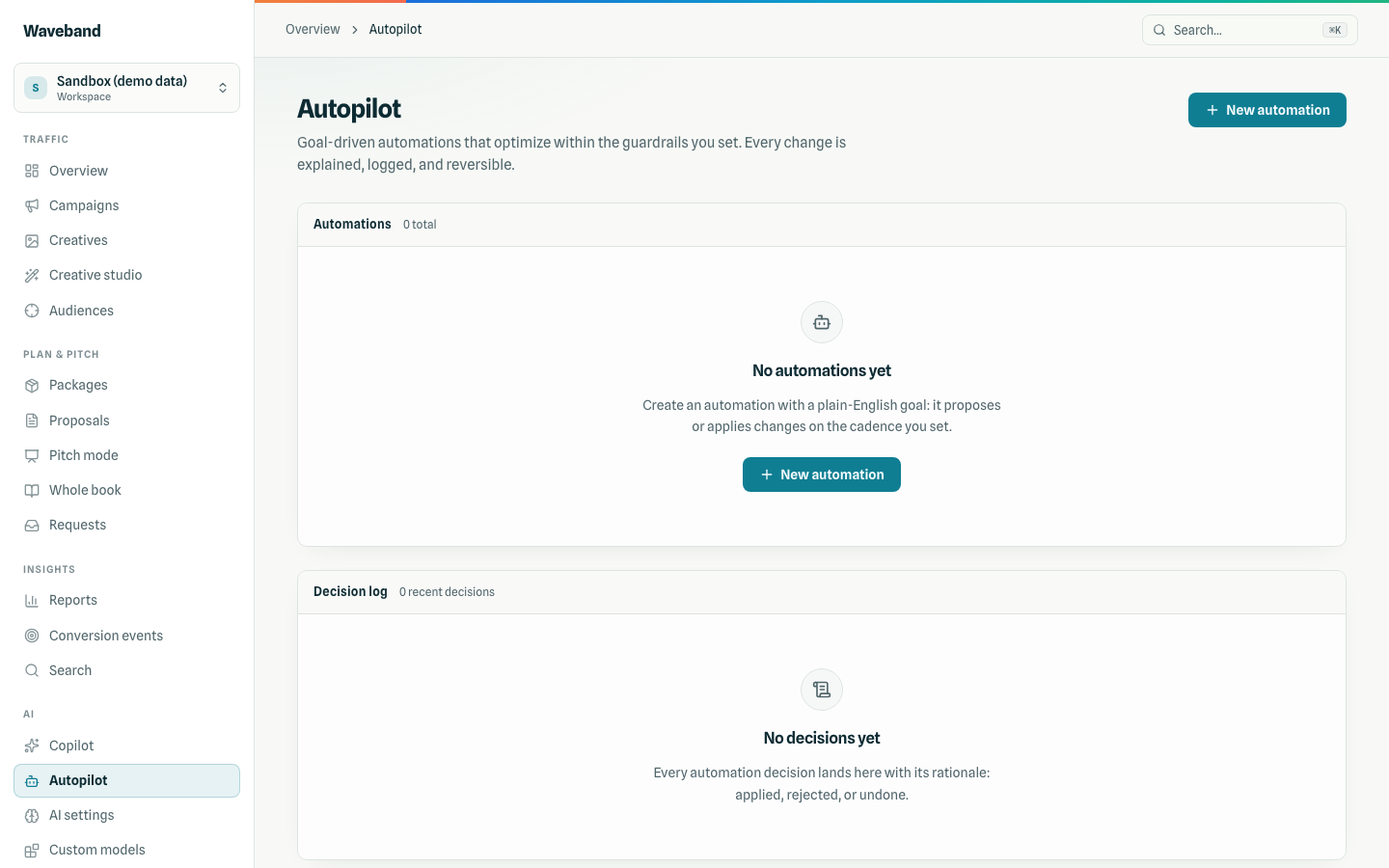
Copilot is chat over your live seat: ask why delivery dipped or which creative wins. Autopilot is continuous automation with goals and guardrails you define. Both are covered in Autopilot & Copilot.
Growth tools: packages, proposals, pitch mode
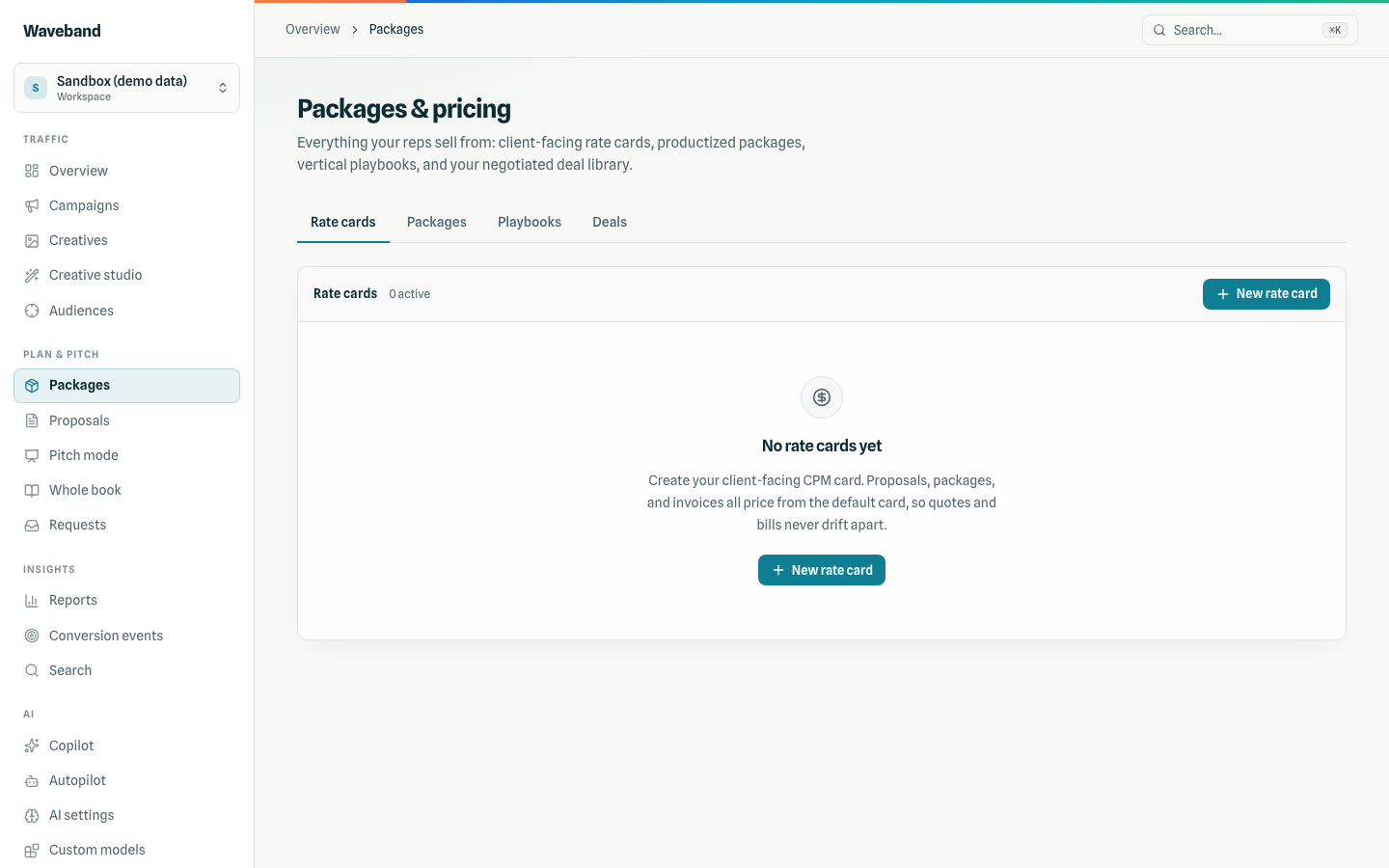
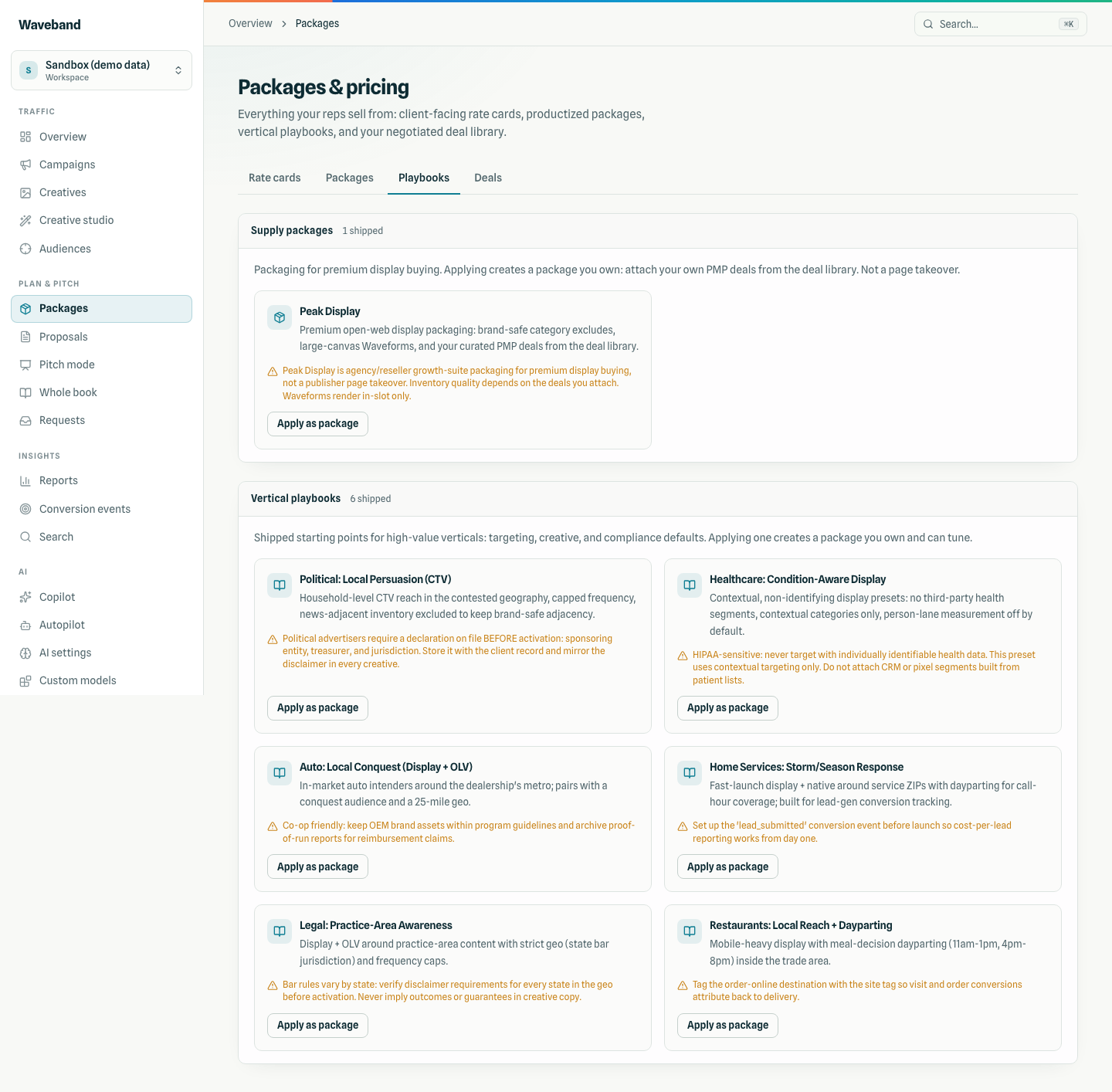
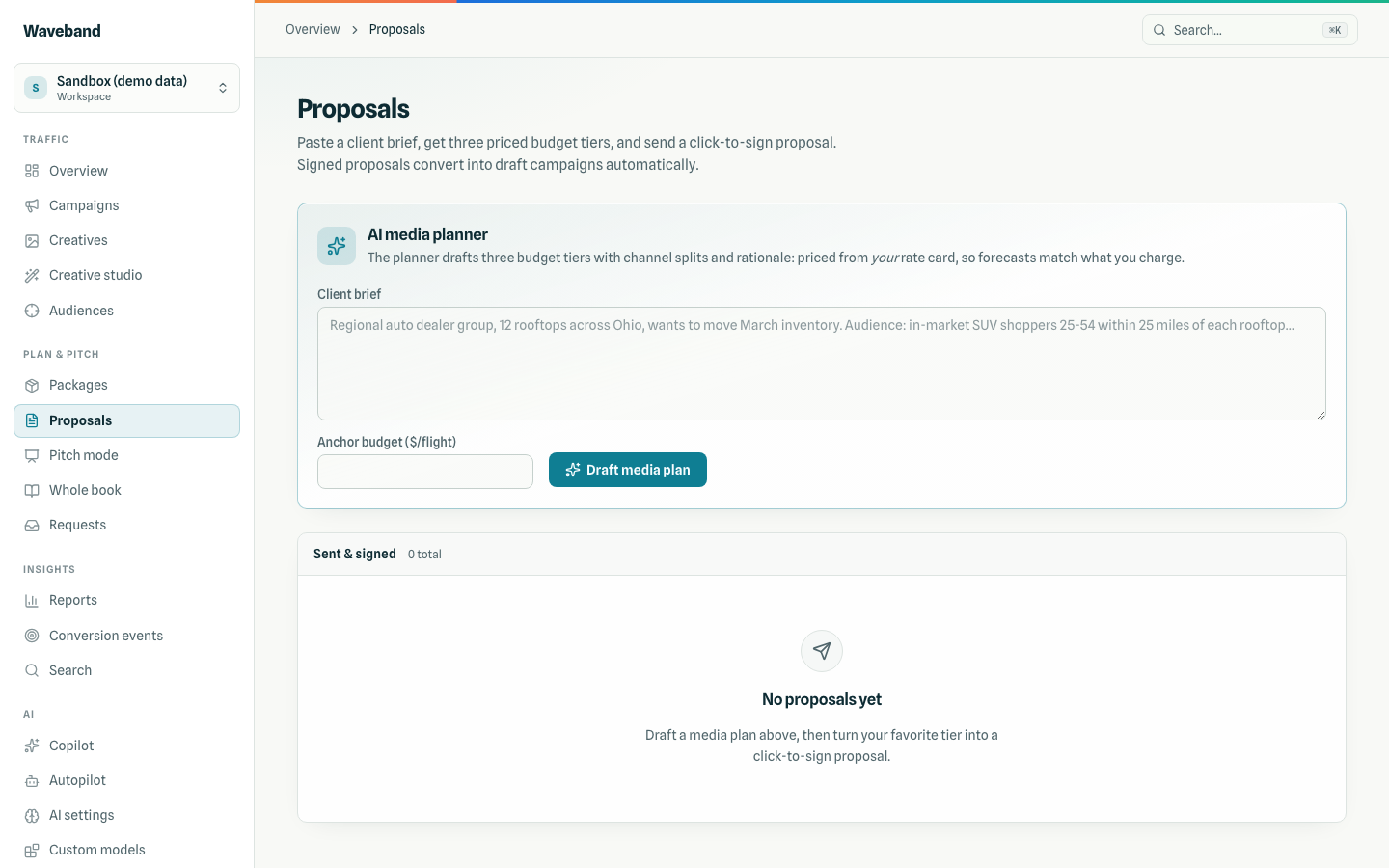
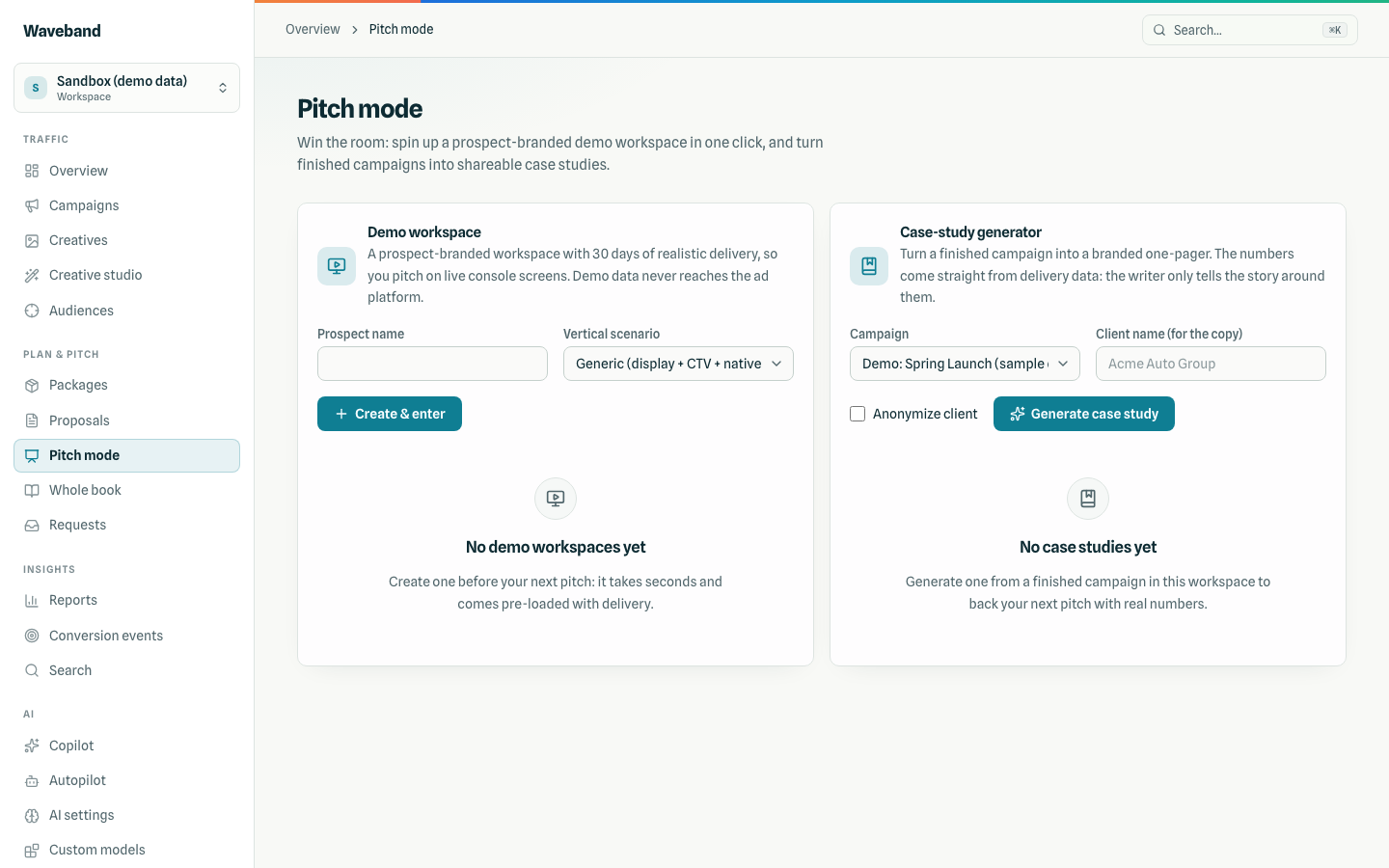
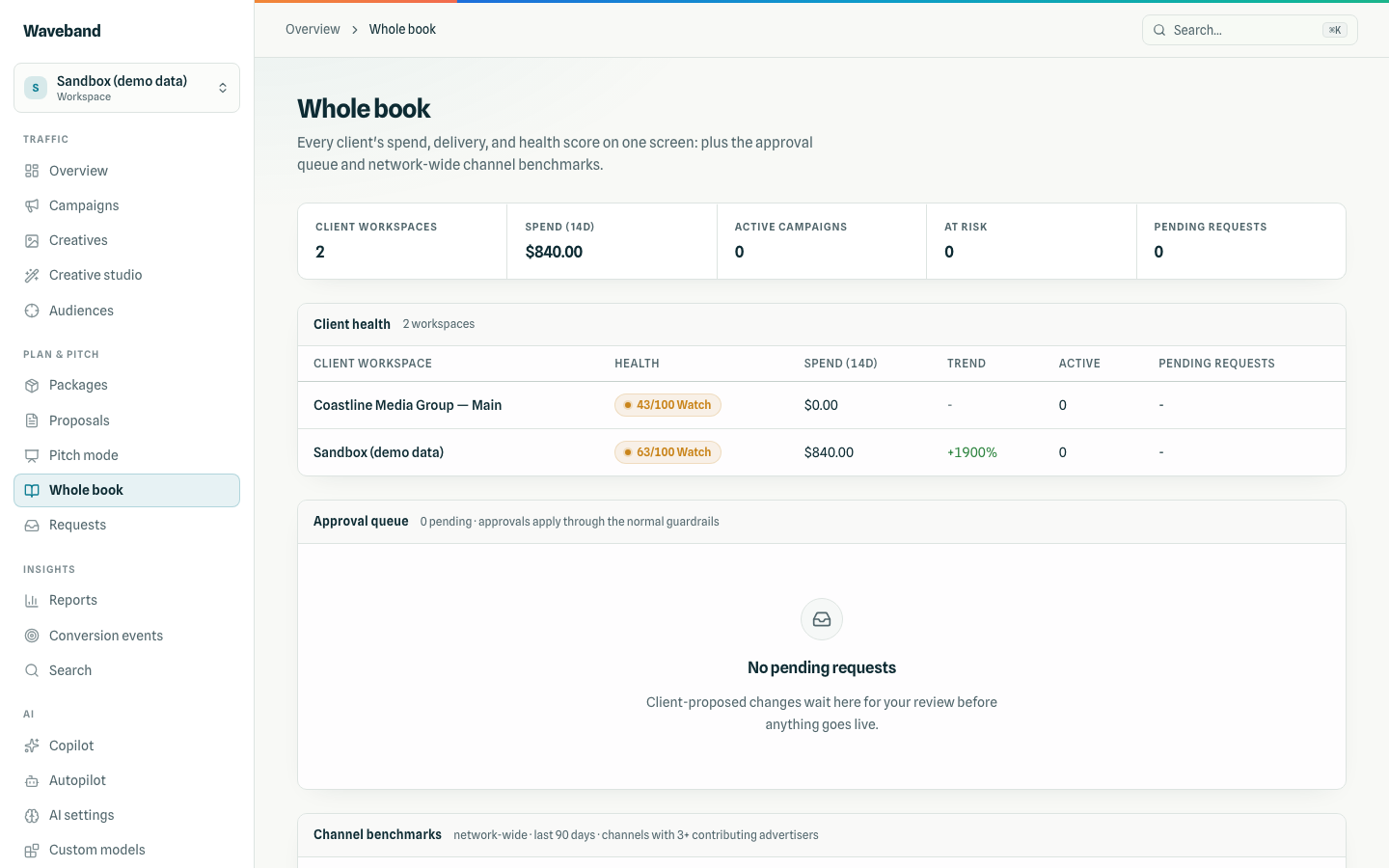
For agency and reseller workspaces, rate cards and packages productize your offering; the proposal builder turns a media plan into a client-ready page with e-sign; pitch mode assembles case studies and one-pagers. The whole-book view rolls every client's delivery into one screen. Playbooks include vertical templates plus Peak Display: a supply playbook (not a creative type) with brand-safe IAB25/IAB26 excludes, a $1,500 budget floor, and guidance to prefer large-canvas Waveforms. You attach PMP deals from your library; Peak Display does not ship deal IDs. Details: Waveforms docs. In-house brands and developer seats hide this section: contact support to change your use case if you need it.
People & teams
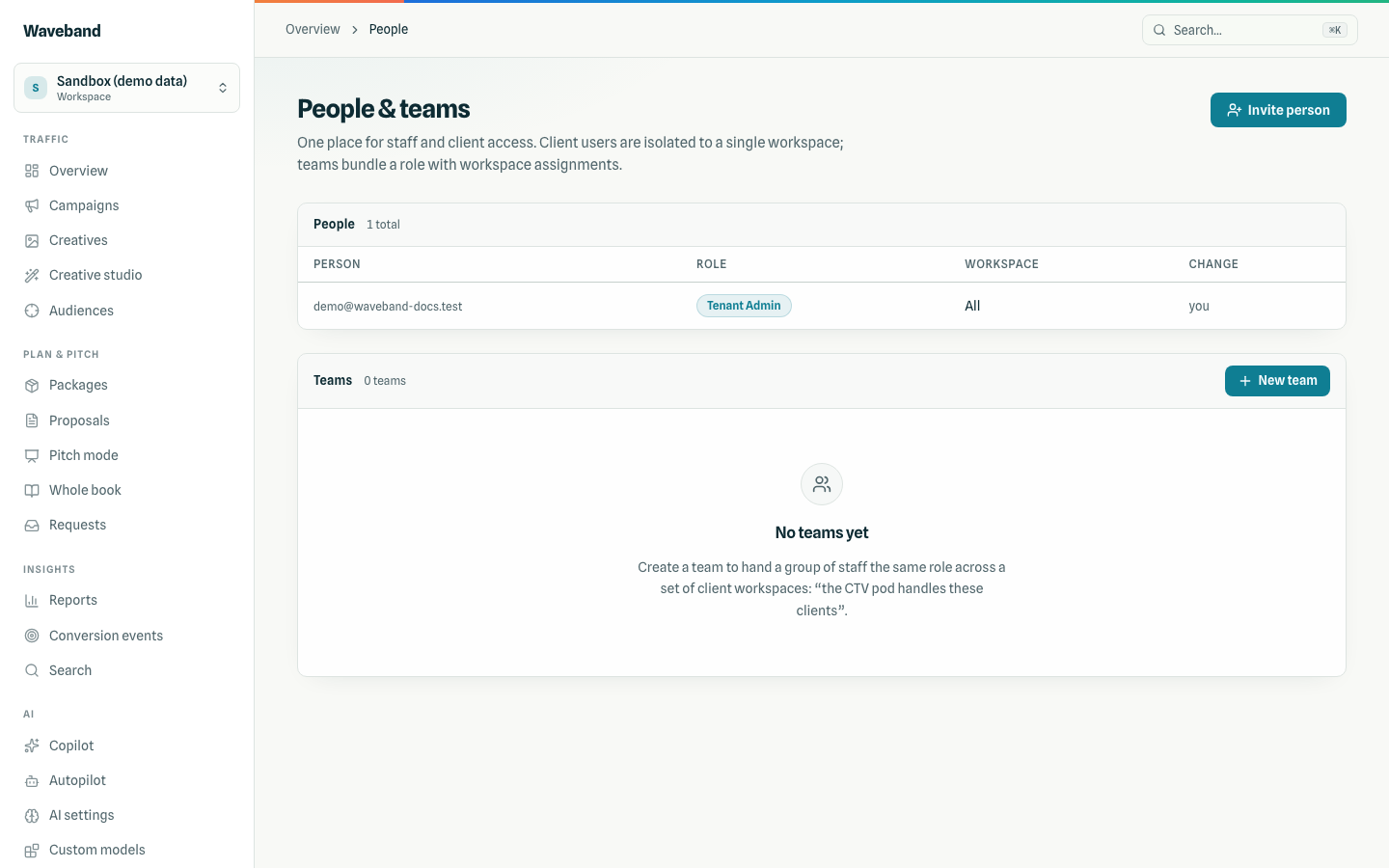
Invite staff (tenant or workspace admins, analysts, viewers) and client users (viewer, approver, collaborator). Teams bundle a role with workspace assignments for larger agencies. Roles in detail: Team & roles.
Requests
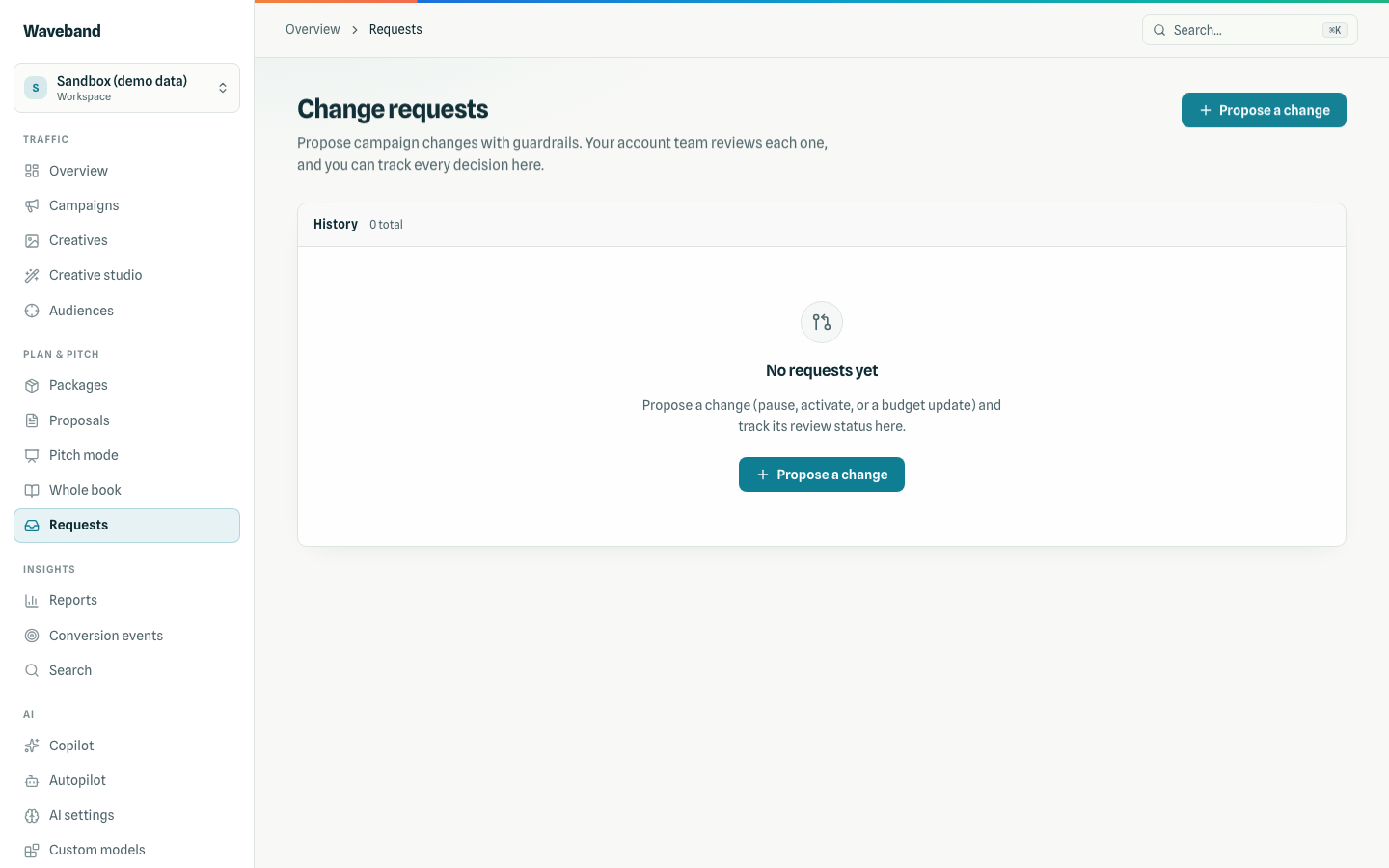
Requests is the change-request inbox shared with client users (see Client portal).
AI settings, custom models, apps
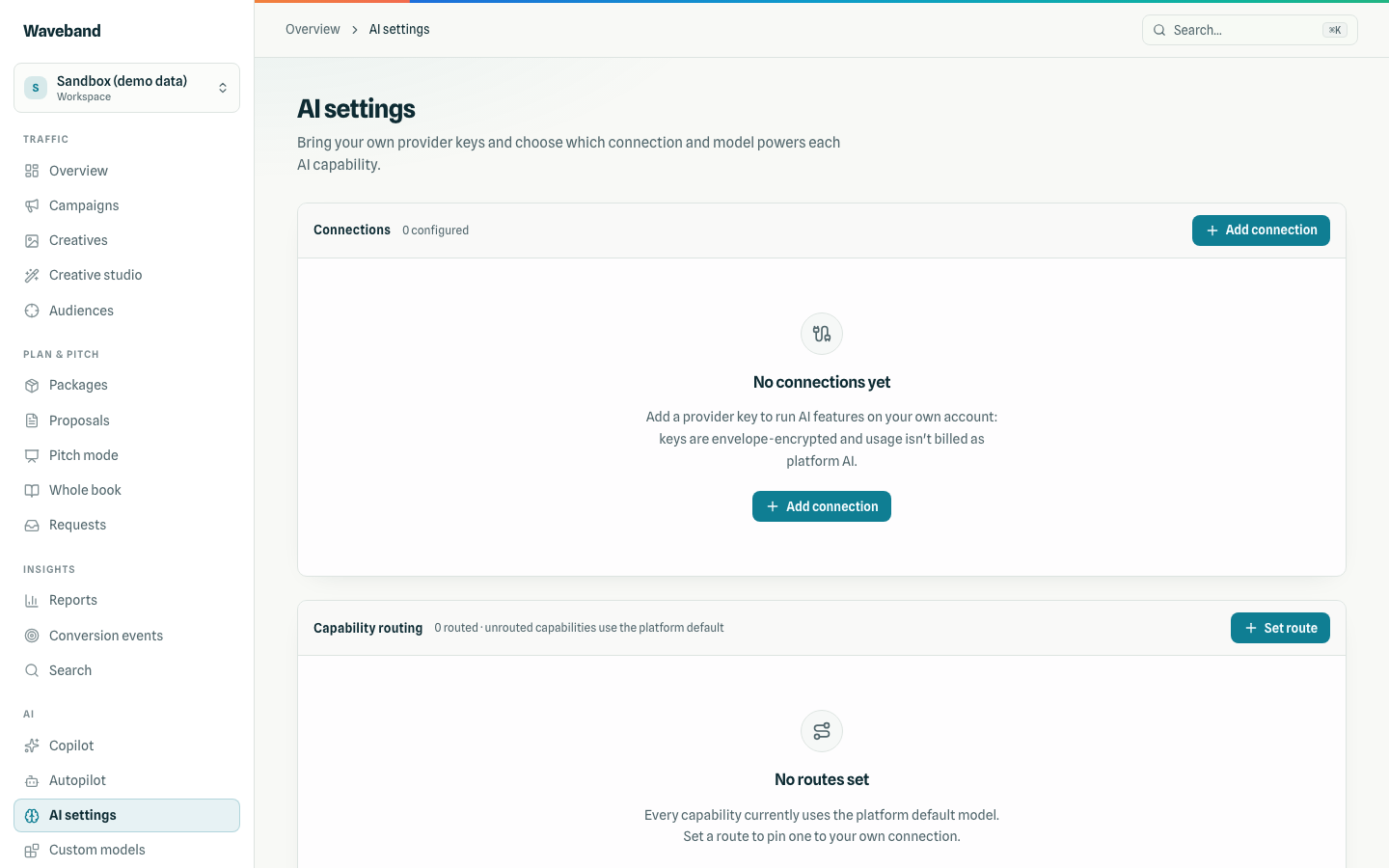
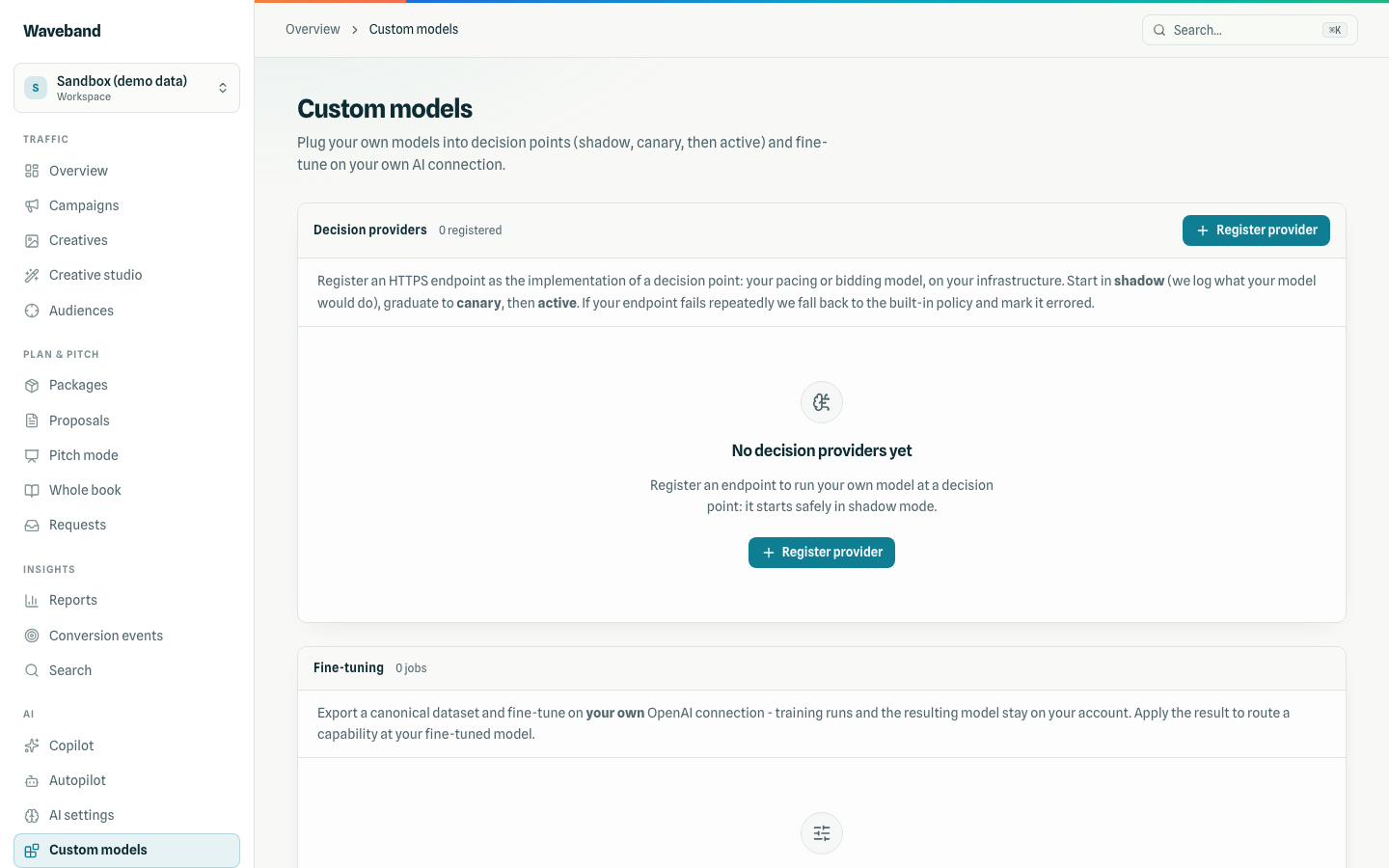
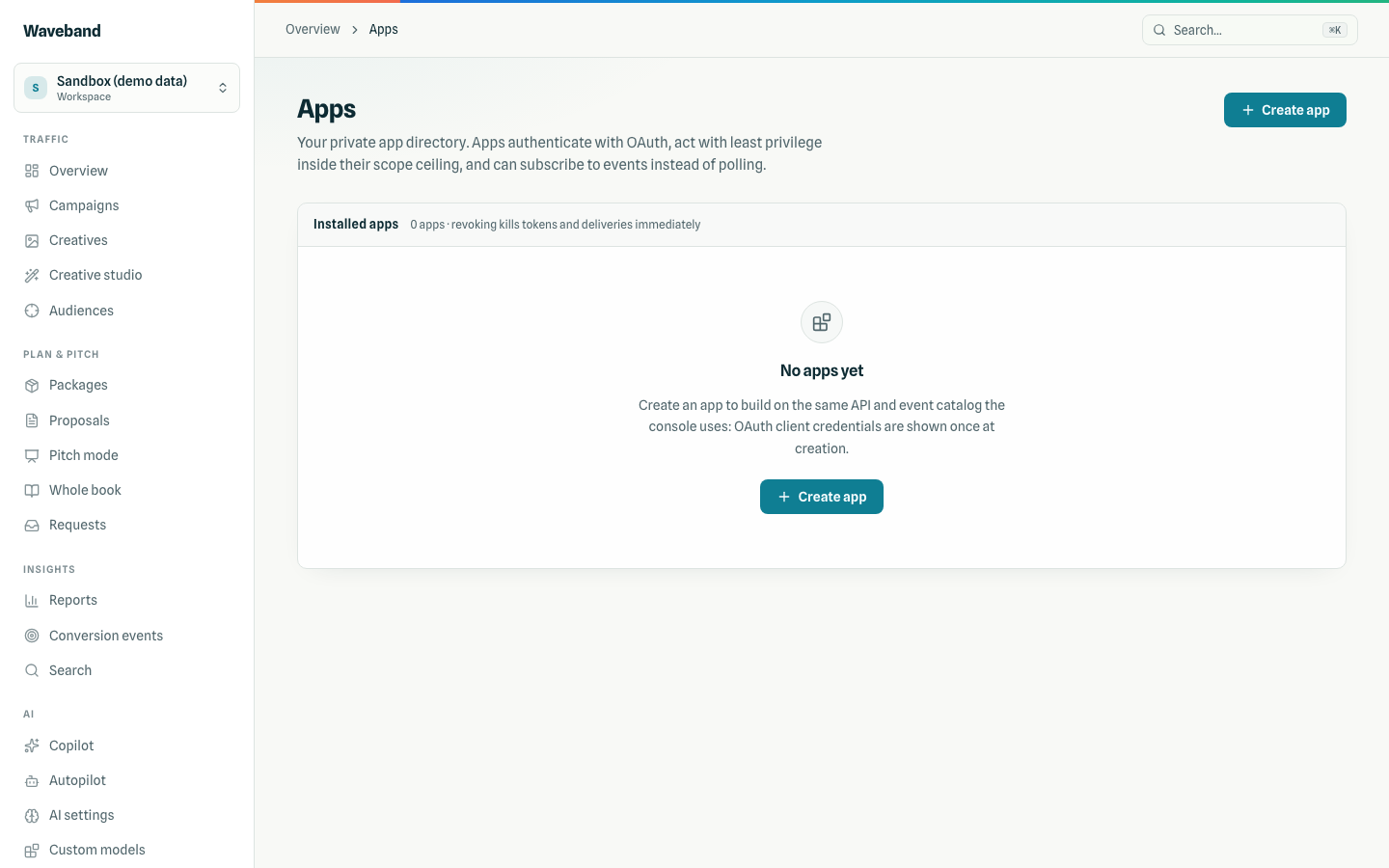
Bring your own AI keys, route capabilities to specific models, fine-tune on your decision history, and install partner apps: all per tenant. Details in Apps & custom models.
Developers, billing, settings, search
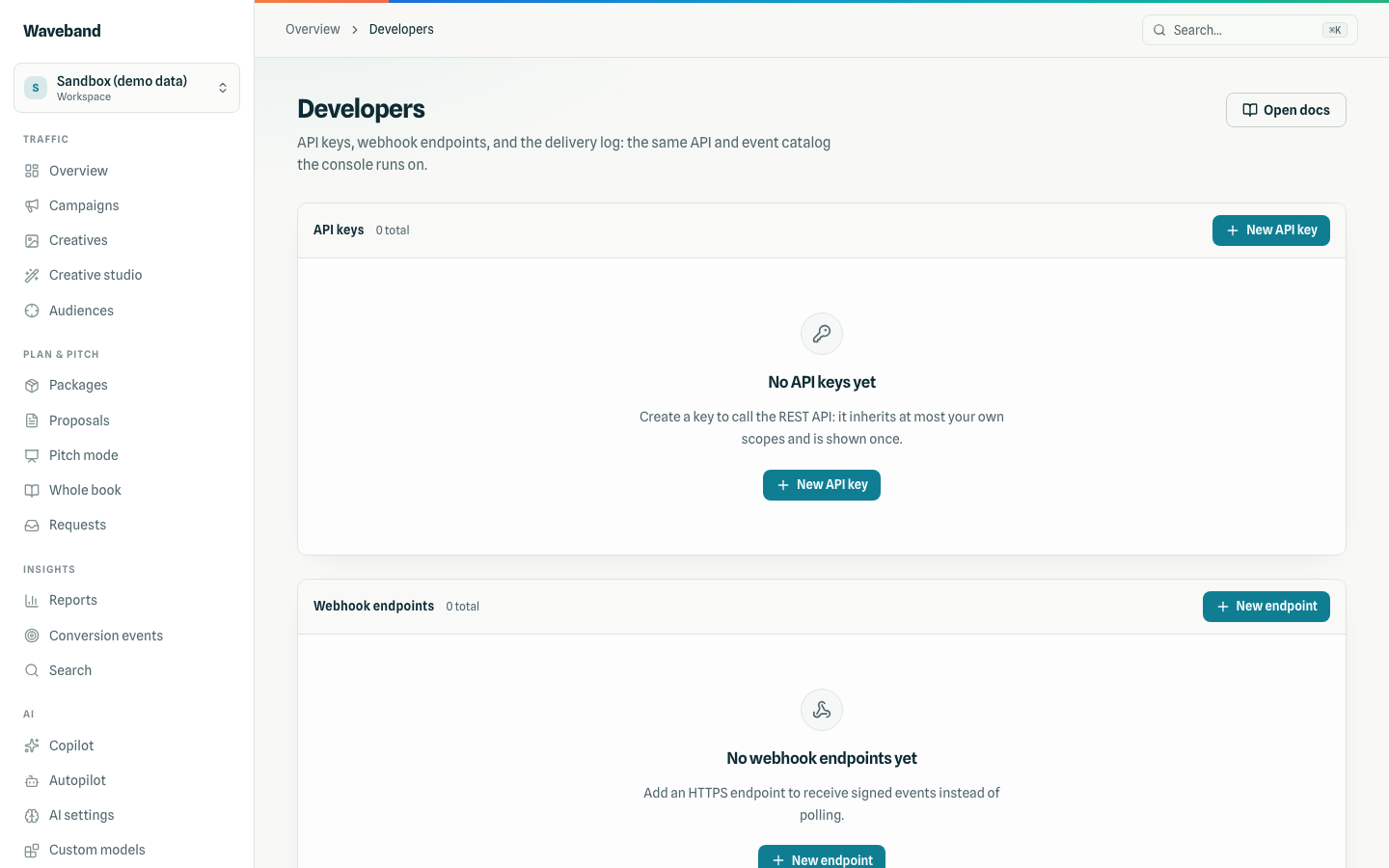
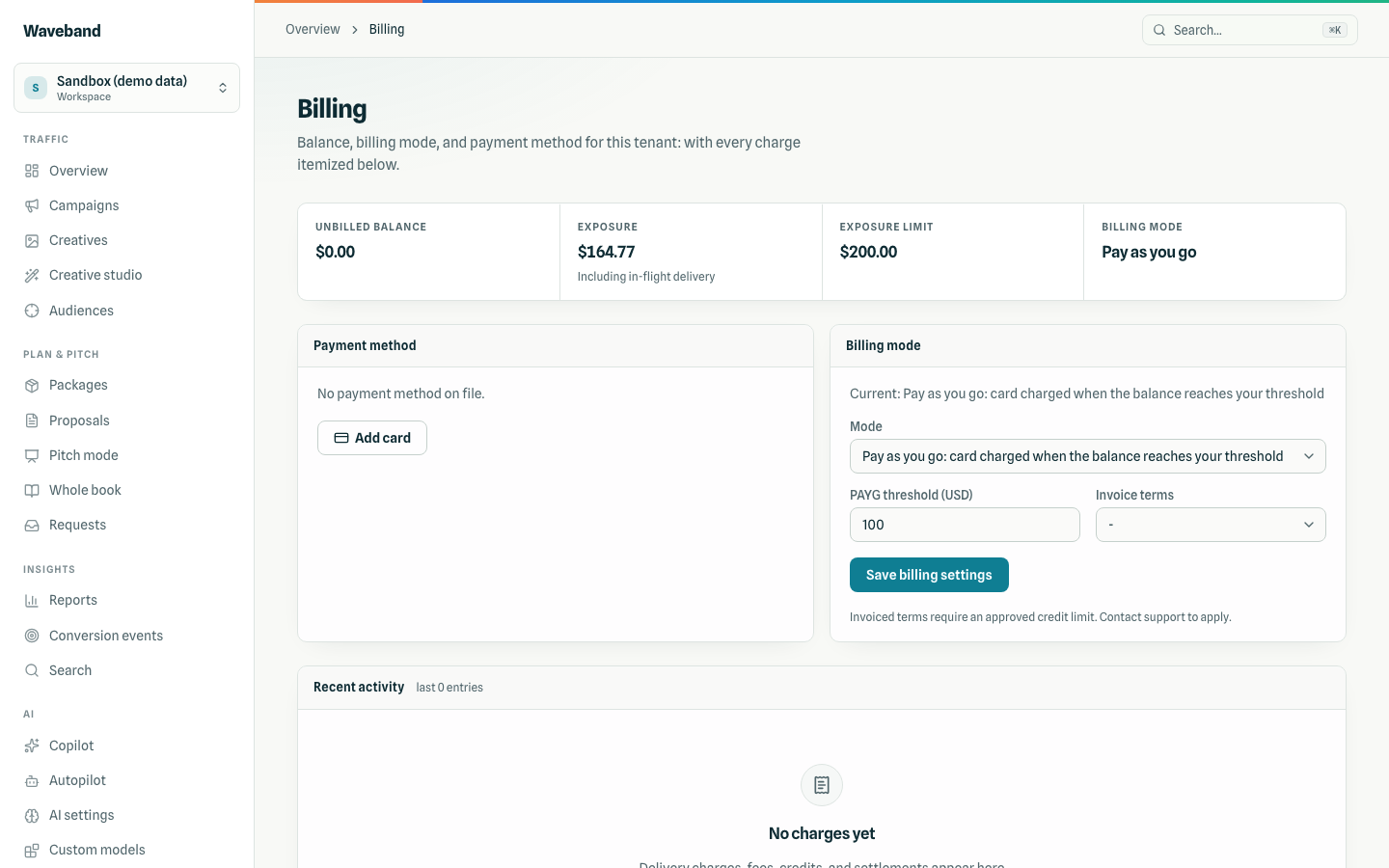
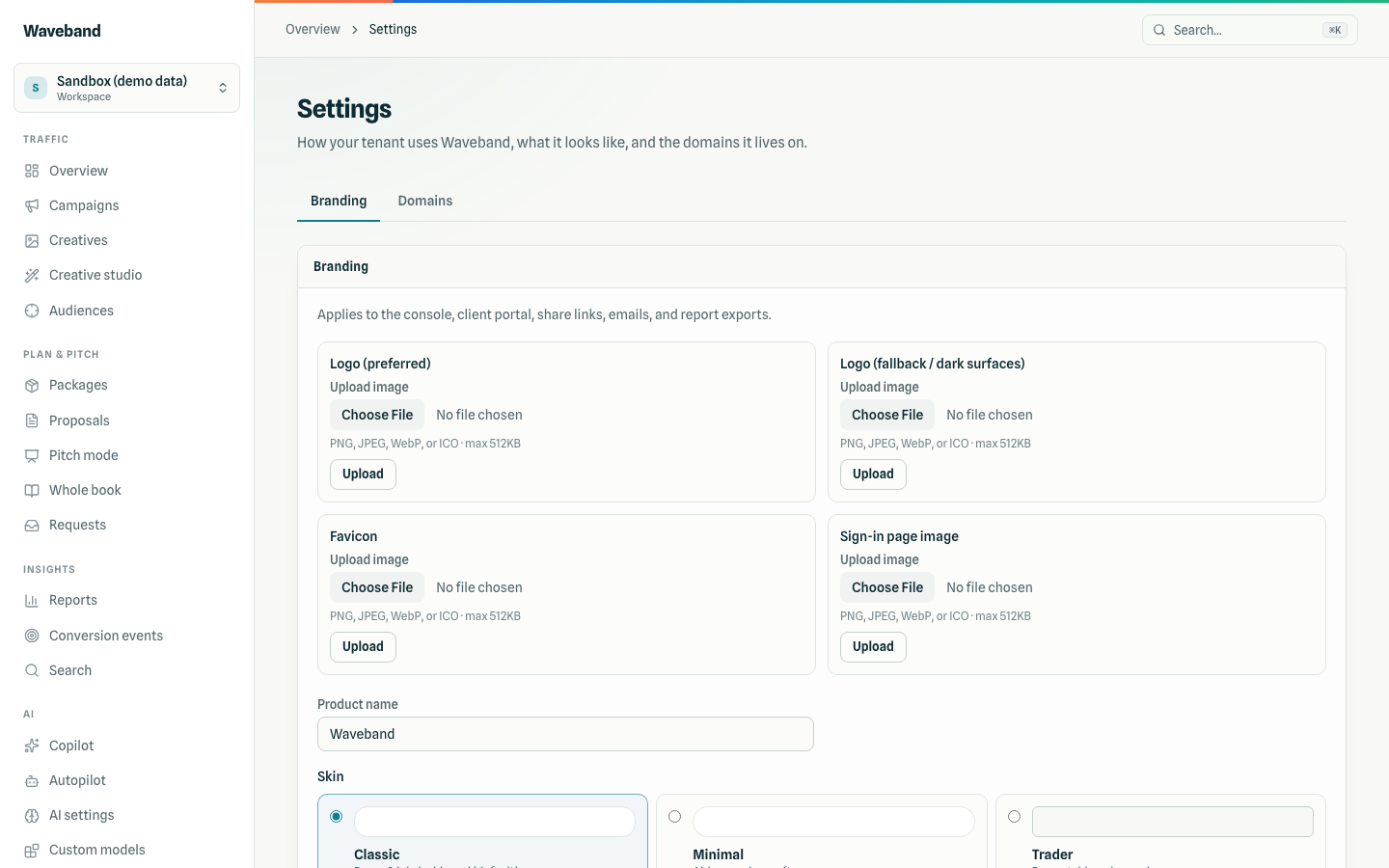
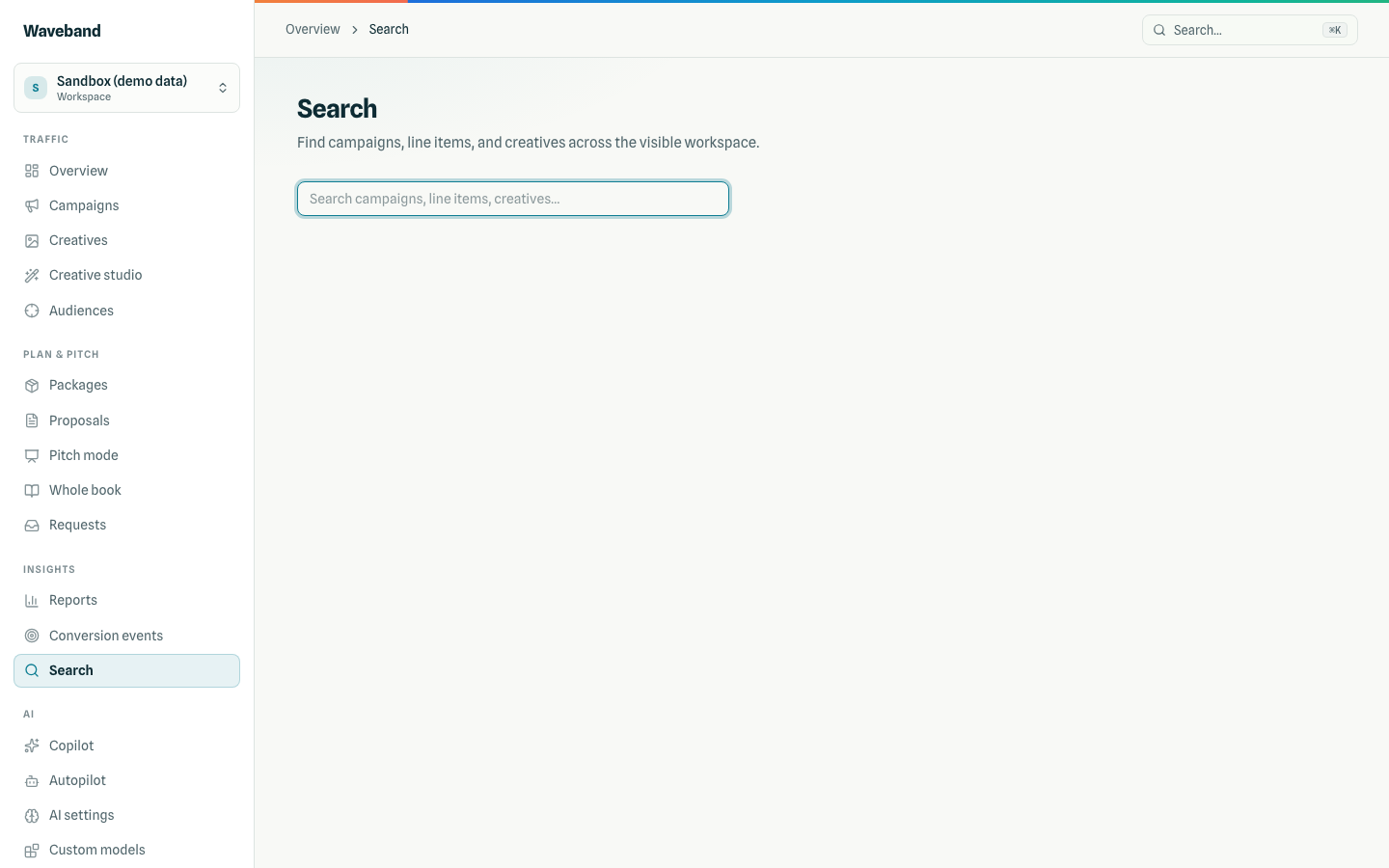
Developers holds API keys, webhooks, and OAuth clients (see API reference). Billing shows your plan, balance, invoices, and payment method (see Billing). Settings covers branding, custom domains, and workspace configuration; Search finds anything by name or UUID.